
A source is a place where you already store and manage photos: folders, your Apple Photos library, or a Lightroom Classic catalog. Start editing from there, without exporting copies or moving files into a new library.
How Sources Work
- Images stay where they are. Aphera reads them from the source and does not write to it.
- Ratings come in with the images. Aphera reads a photo’s rating once, when it first adds the photo.
- Your work stays in the project. Ratings, edits, and groups you make in Aphera do not change the source. See Why Projects.
- The sidebar shows where photos came from. Added photos appear under their source in the Sources section.
Setting Up Sources
Open Settings > Sources and click + to add a source, or choose Search my Mac to find your Photos library, recent Lightroom Classic catalogs, and folders of RAW files. Drag sources to set their order. A warning triangle marks a source Aphera cannot reach. Hover over it to see why.
Adding from a Source
Choose File > Add Images… (Cmd+I) and click a source. The source opens in a picker, where you browse it the way you already organize it and choose the photos to bring into the project.
- Browse the source in the picker’s sidebar: each picker has browsing and filtering options native to that source.
- Select photos and click Add.
- When files cannot be found, they appear dimmed and cannot be selected.
- Each picker reopens with the sidebar selection, filter, and sort you last used for that source.
See Adding Images for the other ways to add images.
Folders
- Browse the picker by folder or capture date.
- Rating comes from the XMP sidecar, or from the file when there is no sidecar.
- RAW and JPG files with the same name become one photo. See RAW + JPG Pairs.
Apple Photos
- Choose images in the macOS Photos picker. It shows images only.
- Originals stay in the library. Aphera downloads them from iCloud when needed.
- Star ratings require macOS 27 or later. Turn them on in Photos > Settings > Show Rating Controls.
- Albums in the sidebar update as your Photos library changes.
Lightroom Classic
- Browse the picker by All Photographs, collection, flag, rating, color label, or capture date. Filter by flag, rating, and color label.
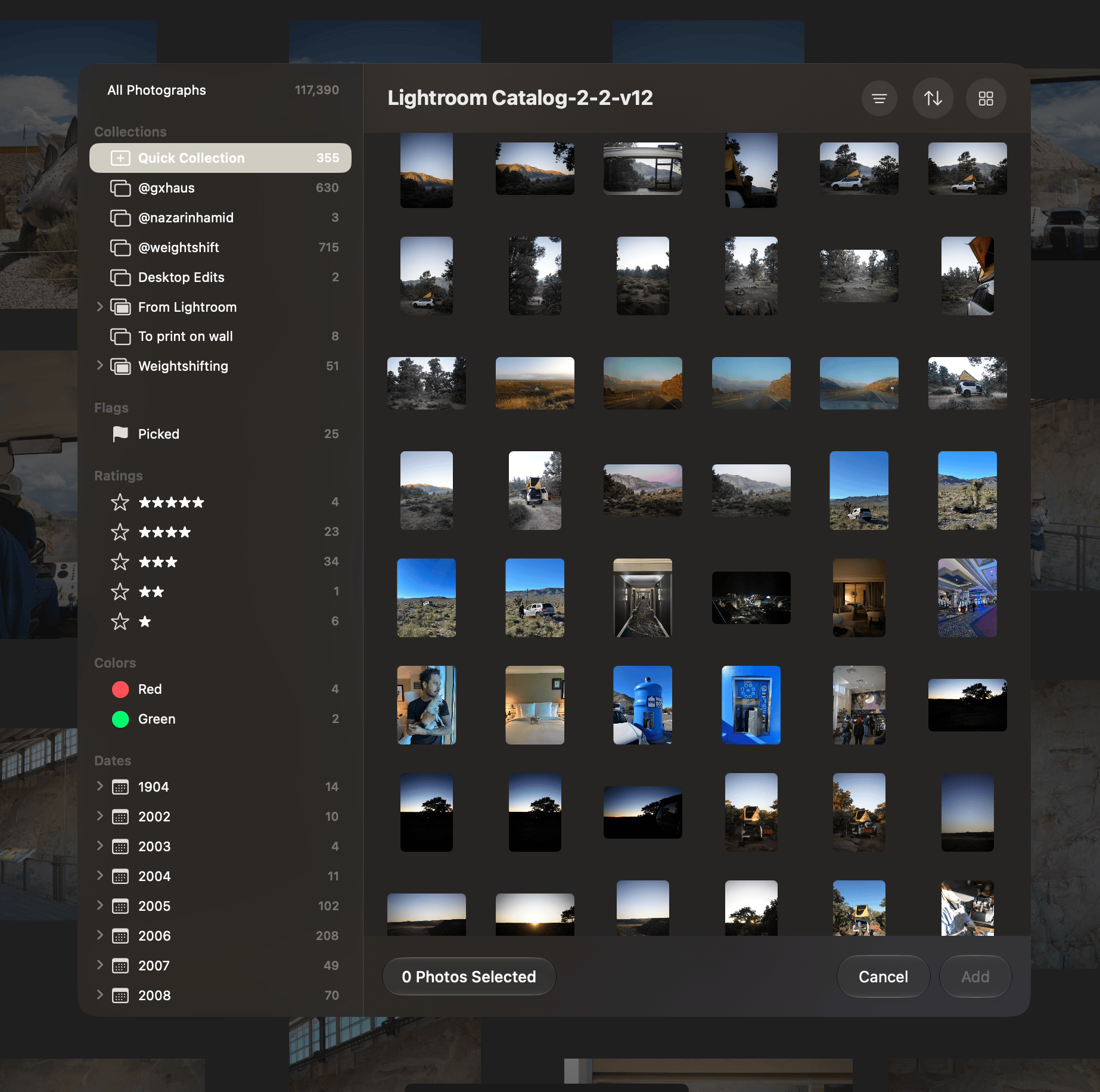
- Ratings come from the catalog, otherwise from XMP sidecars or the file.
- Rejected photos come in as rejected, even when they have a rating.
- Aphera does not bring over edits made in Lightroom Classic.
- The collections that hold the photos appear in the Sources section of the sidebar.
- A catalog is not a live source. Aphera copies ratings and collections when you add photos.
Locating Moved Folders
When you have moved a folder outside Lightroom Classic, the picker shows its photos dimmed. Edit the catalog in Settings > Sources, then click Locate… beside the folder and select its new location. Locating a folder does not change the catalog.
To relink photos already in a project, see Relinking Moved Files.
Reading Lightroom Classic Catalogs Safely
Aphera opens a catalog read-only, including while Lightroom Classic has it open. It never writes to the catalog or creates files next to it.
- While Lightroom Classic has the catalog open, Aphera asks SQLite for a consistent copy. Lightroom Classic keeps working during the copy.
- When Lightroom Classic is closed, Aphera copies the catalog files before reading.
Aphera deletes its copies when you’re done and makes a new copy each time it reads the catalog. Changes made in Lightroom Classic appear the next time you open the catalog in Aphera.
Reading has been tested with catalogs on internal, external, and network drives, and with catalogs from 2007 through the current version of Lightroom Classic.
To back up a catalog before opening it in Aphera, see Adobe’s documentation.