
Aphera’s workspace is a three-panel layout: Sidebar, Content Area, and Inspector.
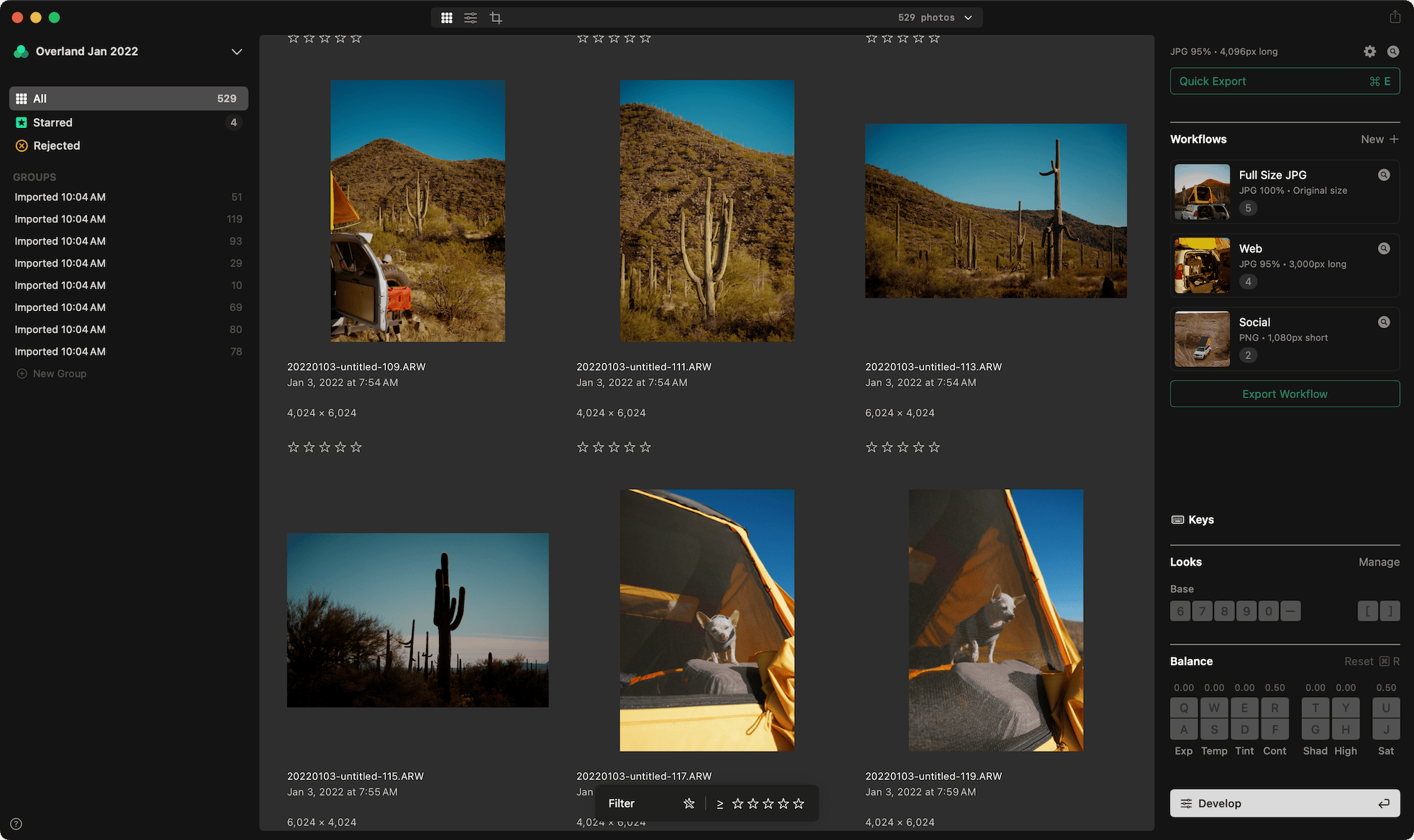
Sidebar (Organizer)
The left panel displays navigation and organization controls with several key sections:
All Ctrl+A: Shows every photo in the project.
Starred Ctrl+S: Shows photos with one or more stars, grouped by star rating.
Rejected Ctrl+D: Shows photos marked as rejected.
Groups: Custom photo groupings within the project.
See Browsing & Grid for detailed information on using these sections.
Toggle visibility with Ctrl+O, or via View > Show/Hide Organizer.
Content Area
The center panel displays your photos. What appears in the content area depends on the current mode: a grid of thumbnails with Balance and Look tools in Grid mode, or a single photo in View, Develop, and Crop modes.
Toolbar
The top toolbar spans the content area and provides two key functions:
- Navigation (left side): Switch between Grid, Develop, and Crop modes. View mode has no toolbar button — enter it with Space or by double-clicking a photo.
- Before Edits (center): Appears while you preview the unedited photo. When the preview was switched on from View > Before Edits, an ✕ ends it; during a \ key hold no ✕ appears. See Browsing.
- Status (right side): Displays current project information including image count, selection ranges, Export status, and Import progress
Click the status area to cycle through three summaries: Selection (current photo position, selection count, or photo count), Exporting, and Importing (each showing progress, or “Not Exporting” / “Not Importing” when idle). The summary also switches automatically when an export or import starts or finishes. The disclosure caret provides live updates when Export or Import operations are active.
The status popover reports files that are unavailable, in two categories:
- Files on disconnected drives — the files are on a volume that is not mounted. Reconnect the drive to make these files available again.
- Missing files — the files have moved or been deleted. Re-link them at their new location using Manage Imports…. See Importing.
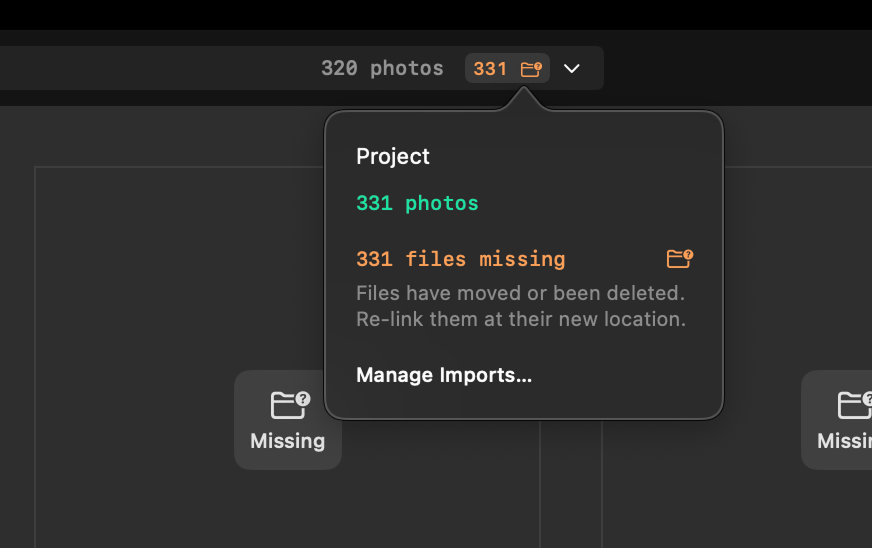
The popover also includes a Manage Imports… button, which opens the panel for reviewing and relinking imports.
Inspector
The right panel provides consistent access to Scopes, Balance controls, Looks, and Exports.
Scopes: Histogram, Waveform, and Color readouts of the current photo. See Scopes for details.
Balance: Core tonal adjustments including exposure, temperature, tint, contrast, shadows, highlights, and saturation. See Balance for details.
Looks: Apply and manage preset styles and looks (in Grid and View modes; in Develop mode, the Looks panel appears on the left side of the window instead). See Looks for details.
Develop Further: Opens the current photo in Develop mode, the same as Return.
Exports: Pinned to the bottom of the panel. Pick the active Export Preset for the project and run it on the selected images. The Finder icon opens the export folder. The gear icon opens Settings → Export, where you create and modify presets. See Exporting for details.
Toggle visibility with Ctrl+I, or via View > Show/Hide Inspector.
Lightbox
The Lightbox displays the current photo without chrome. On a single display, it replaces the standard window with a full screen view. On a multi-display setup, it opens as a separate view on another screen.
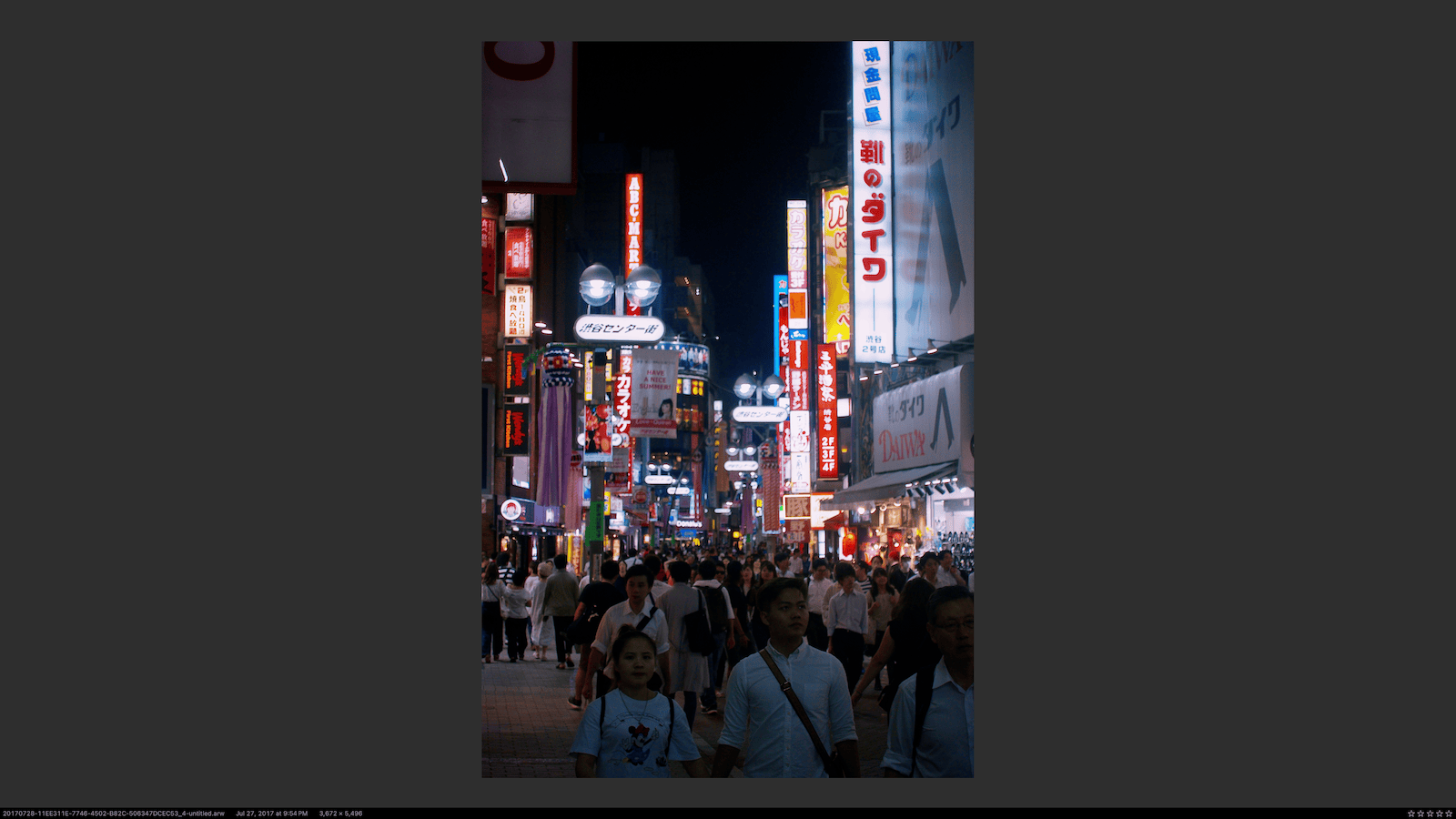
Toggle with L or via View > Open/Close Lightbox.
Configure which display the Lightbox appears on via View > Lightbox Screen. Options are Same as Project or a specific connected display.
Full Screen
Standard macOS full screen behavior via the green window button or the View > Full Screen menu item.
Help
The toolbar includes a Help (?) button that opens the online documentation.
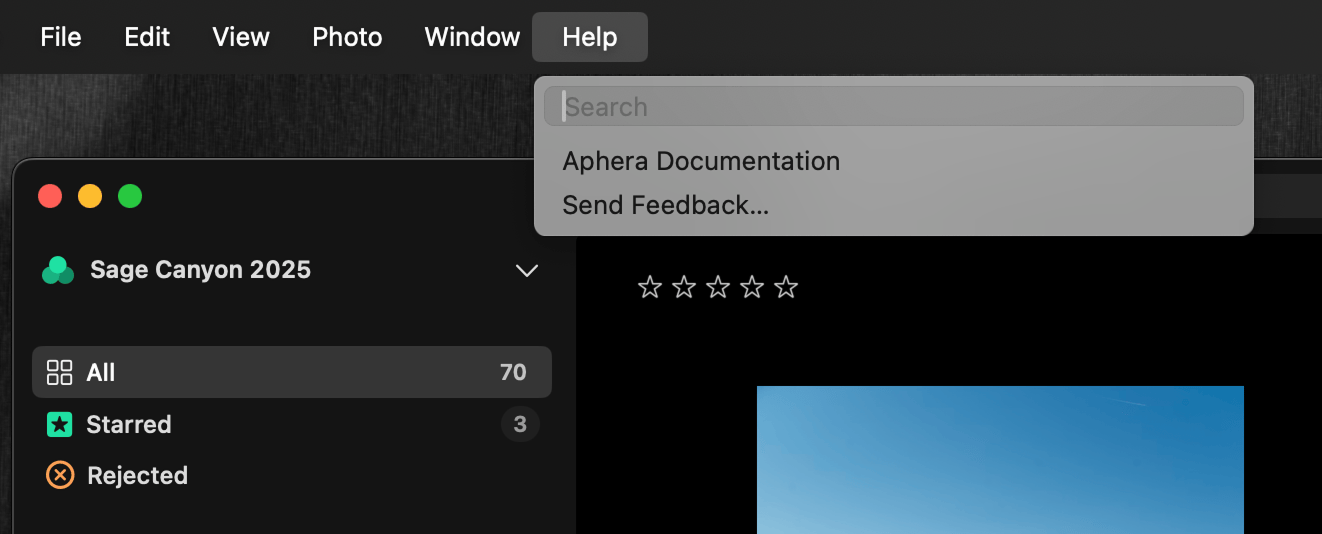
The Help menu provides:
- Aphera Documentation — opens the online documentation.
- Send Feedback… — opens a new email addressed to Aphera support.
Background Color
Change the color behind your photos:
| Shortcut | Action |
|---|---|
| , | Darker background |
| . | Lighter background |
This works in all modes.