
Supported Formats
- RAW files — we support most camera manufacturer RAW formats and Adobe DNG
- Image files — JPEG, HEIC, TIFF, PNG, and other common formats supported by macOS
Video files are not supported.
In the app and documentation, we casually refer to non-RAW files as “JPG”. These formats are supported by Aphera but do not benefit from the RAW image formation pipeline.
RAW + JPG Pairs
When a folder contains a RAW file and a JPG with the same name, Aphera adds both and joins them as a single photo with two source files. One file takes the RAW role, the other the SOOC role (straight out of camera — the camera’s own rendering). Files pair only when one of them can fill each role; two files that would both take the same role stay separate photos.
| Extension | Role |
|---|---|
| DNG, CR2, CR3, NEF, ARW, RAF, ORF, RW2 and other camera RAW formats | RAW |
| JPG, JPEG, HEIC, HEIF | SOOC |
| PNG, TIFF, and everything else | Does not pair |
Notes:
- The RAW file is the photo’s active source file, regardless of which file was added first.
- A third file with the same name cannot take a role that is already filled, so it becomes its own photo.
- Rating, group membership, and rejection belong to the photo, not to the source file.
- Each source file keeps its own adjustments. Editing the photo edits the file that is currently active.
A RAW + JPG pair in Apple Photos also becomes one photo with two source files, with the RAW active. So does a Lightroom Classic photo with a JPEG sidecar.
To change which file a photo uses, see Source File.
What images look like while adding
While Aphera adds images, it uses a black and white preview of the image. This preview gives you enough information to know which photo it is, without biasing your perception of the photograph. Once added and processed, Aphera renders RAW images with its default settings. We never display the internal JPG preview. This means the image may look different from what you saw on the back of your camera or in other applications. Aphera’s default rendering aims to be a pleasing, neutral place from which to bring the image to life. Apply a Look or adjust the Balance to take it from there.
Add Images
Choose File > Add Images… (Cmd+I) to pick images from one of your sources: a folder, Apple Photos, or a Lightroom Classic catalog. File > Add Images from “Source”… (Cmd+Option+I) reopens the source you used last.
To add files that are not in a source, choose File > Add Images from Finder… (Cmd+Shift+I) and select image files or folders.
An empty project shows your sources in the grid. Click one to start.
Drag and Drop
Drag image files onto the sidebar or content area to add them. The drop target sets the destination:
- A group in the sidebar — adds the images to that group.
- Empty space or a section header in the sidebar — adds the images to the project only.
- The content area — adds the images to the group in view, or to the project when no group is in view.
Image files (or folders of images) dropped onto the Aphera dock icon go into the frontmost project. If no project is open, Aphera creates a new untitled project to receive them.
Dragging photos from one project onto another project’s window adds the files only. Adjustments are not included.
From Apple Photos
Drag images from the Photos app into a project to add them from your Photos library. Aphera skips videos. Aphera asks for access to Apple Photos the first time.
Images in Shared with You cannot be added. In Photos, choose Image › Save Shared Photo, then drag them again.
Paste to Add
Copy files in the Finder, or photos from another Aphera project, then press Cmd+V in a project window to add them. A paste goes into the group in view, or into the project when no group is in view.
Where Added Images Go
- Paste, or a drop on the content area, while a group is in view — adds the images to that group.
- Add Images…, a source picker, Add Images from Finder…, and paste or drops with no group in view — adds the images to the project only.
When Aphera starts adding, it shows the photos: the destination group, or Last Added for images added with no group. Aphera also resets the rating filter. To make a group from the added photos afterward, select them in Last Added, then right-click the Groups header and choose New Group….
Aphera does not add an image that is already in the project. When the destination is a group, Aphera adds those photos to that group.
Import Looks
File > Import Looks… opens a file browser to select .apheralook files for import. You can also drag look files directly into the looks panel. See Looks for details.
Batches
Aphera organizes added images by batch. The toolbar shows progress while Aphera adds images. When the batch finishes, a toast reports how many images Aphera added, how many it skipped because they were already in the project, and any folders or files it could not read.
Toasts count images, and group membership counts photos. A batch of 100 RAW + JPG pairs adds 200 images and 100 photos to a group.
To stop a batch, click the ✕ beside it in the toolbar’s status popover. Images already added stay in the project.
Relinking Moved Files
Aphera tracks files by macOS bookmark and finds most moved or renamed files automatically. When Aphera cannot locate a file, it reports the file as missing in the project status. The Folders row of the sidebar marks its folder:
- A folder with missing files shows a red folder icon with a question mark.
- A drive that is not connected shows a red drive icon. Its folders appear dimmed.
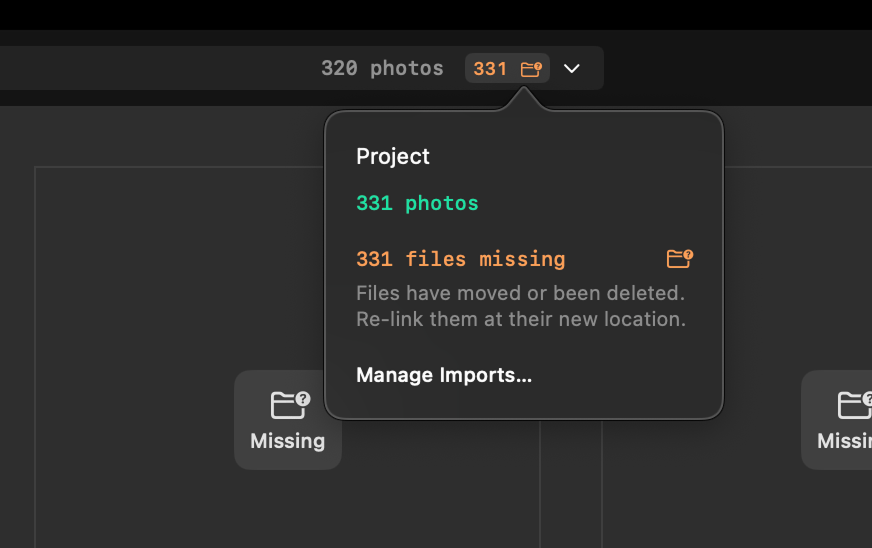
To relink a moved folder:
- Right-click the folder under Folders in the sidebar and choose Update Folder Location….
- Select the folder where the files are now, and click Update Location.
Aphera matches the expected files at the new location and relinks them. A toast reports the result:
| Toast | Meaning |
|---|---|
| Updated location of N files | Aphera relinked the files. |
| Updated location of N files · N folders not found | Aphera relinked some files. The chosen folder did not contain the files from the other folders. |
| No matching files in that folder | The chosen folder did not contain the expected files. Nothing changed. |
Updating a folder also updates the folders inside it. Updating a drive row updates every folder on that drive. Update Folder Location… is not available on the Home and Macintosh HD rows.
Relinking does not move or copy files. It updates the project to reference the files at their new location.
Update Metadata from Files
Update Metadata reads a photo’s files again and updates the photo’s metadata, including its capture date, and its lens correction data. Update metadata after installing or updating Lensfun data, or to pick up data a later version of Aphera can read.
To update the selected photos, choose Photo > Update Metadata from Files, or right-click and choose Update Metadata from Files. With one file selected, the command reads Update Metadata from File. To update every photo in the project, select All in the sidebar, press Cmd+A, then choose Photo > Update Metadata from Files. Aphera asks to confirm with Update Metadata.
Update Metadata keeps your edits, with one exception: when a photo’s current edit has no lens correction and the new data has one, Aphera applies it. See Lens Corrections.
Aphera skips files on a disconnected drive, missing files, and files it cannot read. Skipped photos keep the data they had. A toast reports the result:
| Toast | Meaning |
|---|---|
| Updated metadata of N images | Aphera read every file again. |
| Updated metadata of N images · skipped N | Aphera read some files again and skipped the rest. |
| Couldn’t read N offline files | Every file was missing or on a disconnected drive. |
| Couldn’t read N files | No file could be read. |
Adding from SD Cards
Aphera must be able to access your image files, and SD cards are typically ejected and erased to use again in your camera. Use Transfer to copy photos from the card to your disk and add the copies. When you add, drag, or paste files from a camera card, Aphera opens Transfer instead.
Apple Photos
Add images from your Apple Photos library through the Apple Photos source, or by dragging them from the Photos app. See Sources for what Aphera reads from the library.