
Exports in Aphera are driven by Export Presets. A preset bundles a name, a file destination, a naming pattern, and format options. Set up your presets once in Settings, then export with a single shortcut.
A preset can write into the active project’s folder — useful when each project’s exports should live alongside it — or to a fixed global location, like a Dropbox folder or a shared drive used across every project.
Configuring Presets
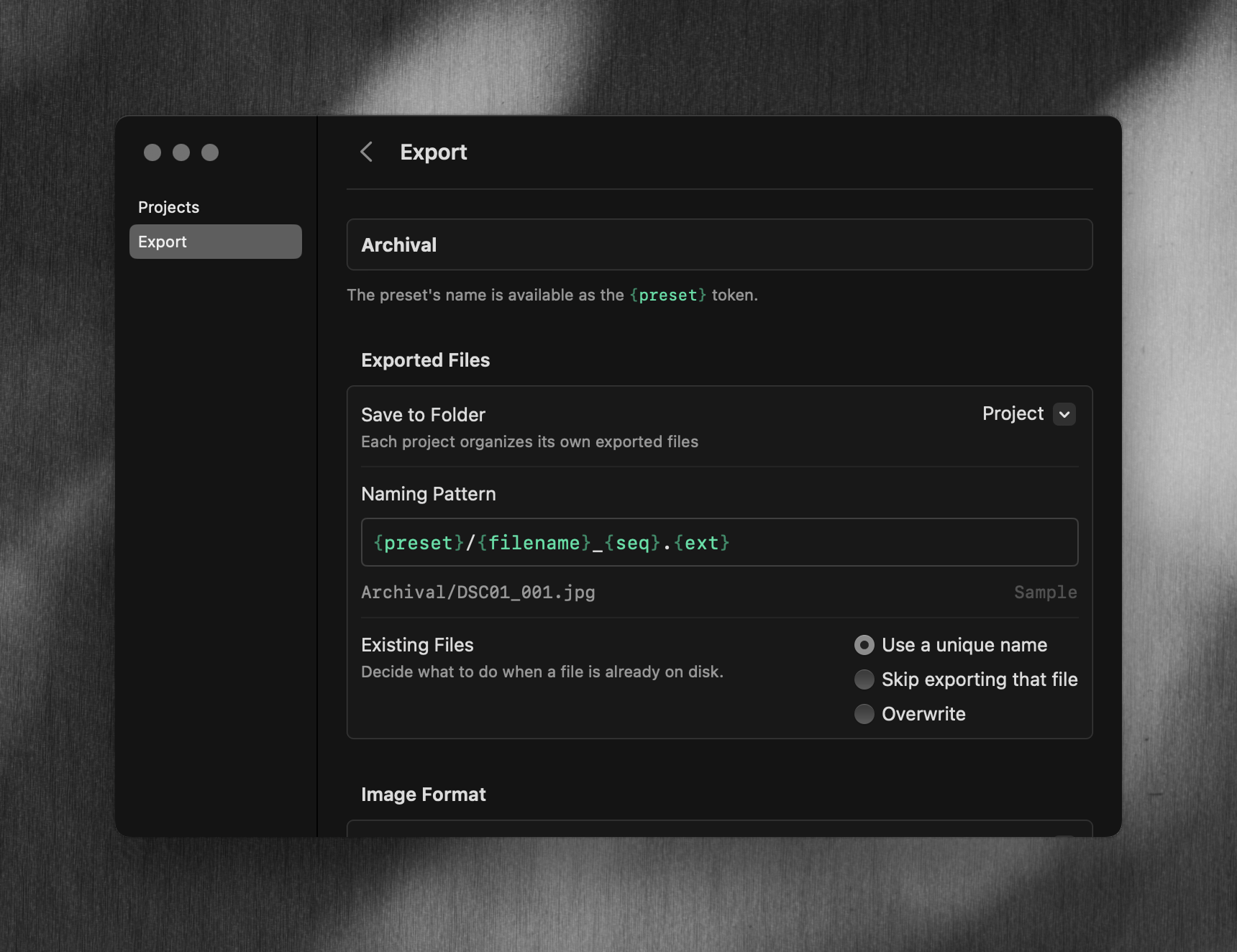
Open Settings with Cmd+, and select Export. Click a preset to edit its file and format settings. Use Add Export Preset to create a new one, or the trash icon on a row (or right-click → Remove) to delete.
Built-in Presets
Aphera ships with three presets you can use as-is or take as starting points. All three write into the active project’s Exports folder by default — change the folder per preset if you’d rather send to a fixed global location.
| Preset | Format | Size | Naming Pattern |
|---|---|---|---|
| Archival | sRGB JPG, full quality | Original | {preset}/{filename}.{ext} |
| Web | sRGB JPG, 95% quality | 3000px long edge | {preset}/{filename}-{seq}.{ext} |
| Social | sRGB PNG | 1080px short edge | {preset}/{filename}-{seq}.{ext} |
File Settings
| Option | Description |
|---|---|
| Save to Folder | Where Aphera writes exports. Organize in project writes into the project’s exports folder; Choose Folder… picks a fixed location (e.g. a Dropbox or client delivery folder). |
| Naming Pattern | The path under the folder, built from tokens. |
| Existing Files | What happens when a file already exists: Use a unique name, Skip exporting that file, or Overwrite. |
Format Settings
| File Format | Options |
|---|---|
| HEIC | Quality 60–100%, Bit Depth 8 or 10 Bit |
| JPG | Quality 60–100% |
| PNG | Bit Depth 8 or 16 Bit, PNG Filter |
| TIFF | Bit Depth 8 or 16 Bit, TIFF Compression |
| Setting | Options |
|---|---|
| Color Profile | sRGB, Adobe RGB, Display P3, ITU-R BT.2020, ProPhoto RGB |
| Size | Original Size, Long Side (px), Short Side (px) |
Color Profile sets the profile embedded in the exported file. It does not change how Aphera renders the image, but it can change how colors appear in other software and on other devices.
| Option | Description |
|---|---|
| sRGB | The default. Use it unless you have a specific requirement. |
| Adobe RGB | Common in professional print workflows. |
| Display P3 | For display on modern devices. |
| ITU-R BT.2020 | For color-managed workflows that require it. |
| ProPhoto RGB | For color-managed professional workflows that require it. |
PNG Filter sets the filter applied to pixel data before compression. It affects file size and export time, not image quality.
| Option | Description |
|---|---|
| Adaptive | Filters each row of pixels. The default. |
| None | No filtering. Larger files. |
TIFF Compression sets the compression applied to the file. All options are lossless.
| Option | Description |
|---|---|
| LZW | The default. |
| ZIP | Deflate compression. Smallest files. |
| None | Uncompressed. Largest files. |
Choosing a Preset
Each project has one active preset. Change it from File > Change Export Preset, or from the export selector in the project window. Aphera remembers the active preset per project.
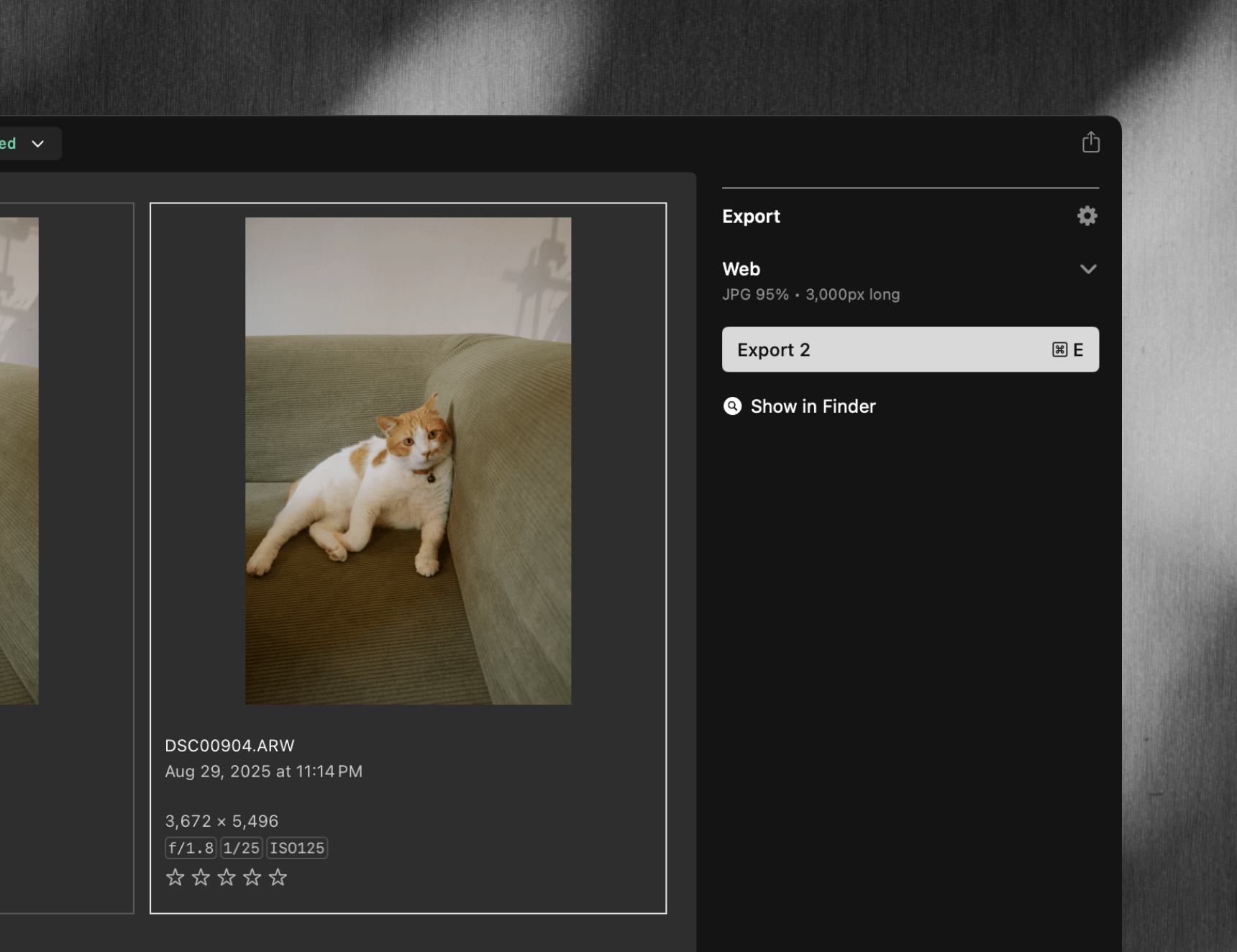
If no preset is selected (or you haven’t created one yet), open Settings → Export to create one.
Running an Export
Cmd+E exports the selected photos using the active preset. The menu item reflects the active preset’s name — for example, Export Selected with “Web”. With no preset active it reads Export Selected. The shortcut is unavailable when no photos are selected, no preset is active, or the export folder can’t be resolved.
Aphera writes files to the preset’s folder, organized by its naming pattern. Progress appears in the toolbar status area; see Workspace.