
Aphera 1.9 lets you start editing from where you already store and manage photos.
Images Sources
Set up your folders, Apple Photos library, and Lightroom Classic catalogs in Settings > Sources, or click Search my Mac to find them. Then choose File > Add Images… (Cmd+I) and pick photos from any source. Aphera leaves your images where they are and does not change your sources.
Each source opens in a picker so you can choose exactly which photos come into the project.
- Browse Apple Photos using the system picker: Albums, Search, and filtering.
- Browse a Lightroom Classic catalog by collection, flag, rating, color label, or date, and filter by flag, rating, and color label.
- Browse plain folders by capture date or file structure.
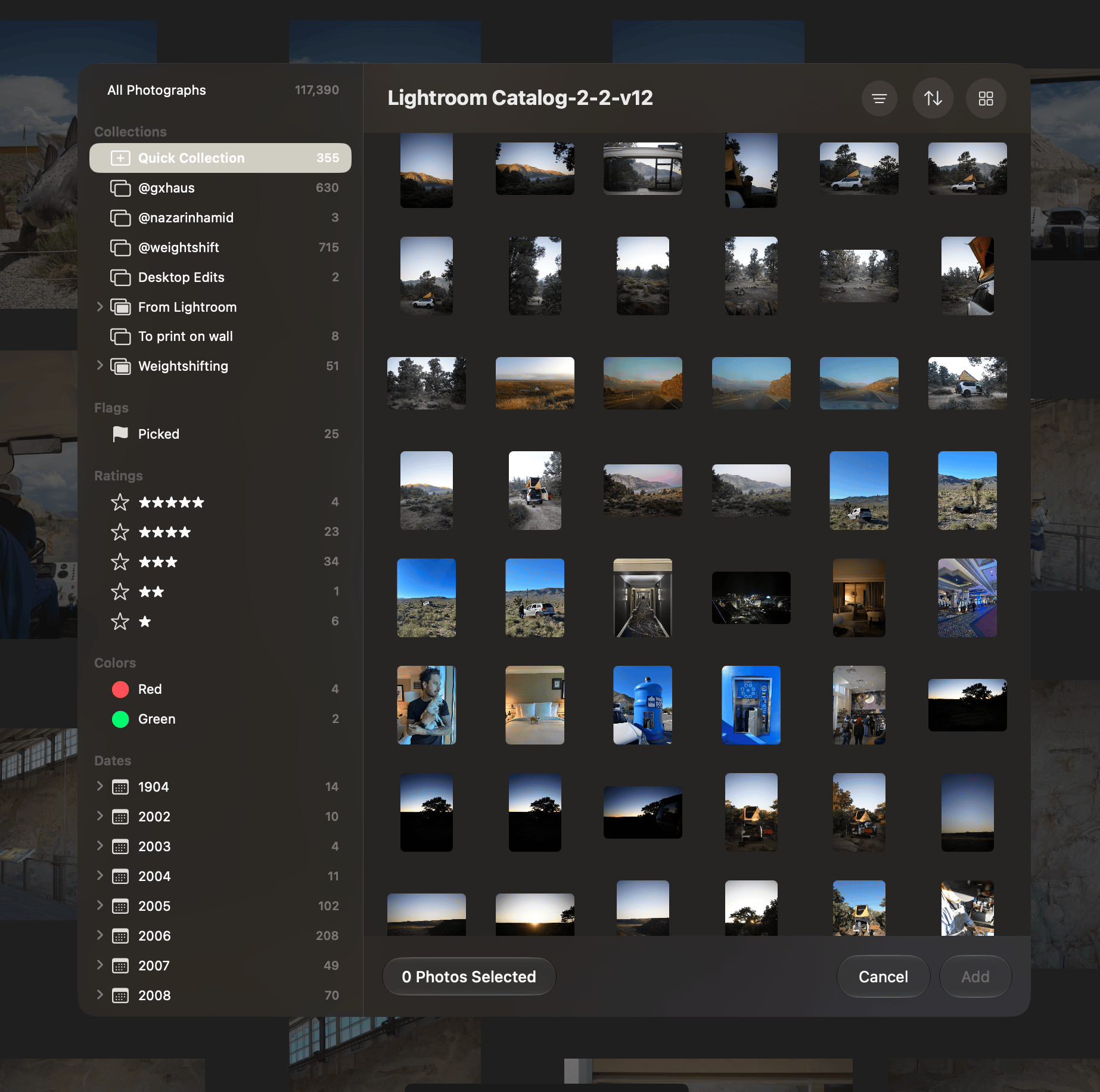
Ratings now are copied into the proejct with each image. Rating a photo in Aphera does not push those changes back to the source.
- Apple Photos: ratings in os 27. Albums appear in the sidebar.
- Lightroom Classic: ratings and rejects. Collections appear in the sidebar.
- Folders: XMP sidecar files or embedded rating.
See Sources.
Lightroom Classic Catalogs are Read Safely
Aphera opens a catalog read-only, including while Lightroom Classic has it open.
Aphera is very careful in how it reads a catalog to avoid data corruption. It never writes to the catalog or creates files next to it.
- While Lightroom Classic has the catalog open, Aphera asks SQLite for a consistent copy. Lightroom Classic keeps working during the copy.
- When Lightroom Classic is closed, Aphera copies the catalog files before reading.
Changes made in Lightroom Classic appear the next time you open the catalog in Aphera, as Aphera deletes its copies when you’re done and repeats the process each time it’s needed. This has been tested with catalogs on internal, external, and network drives, and catalogs as old as 2007 through the current version.
If you have any concerns about the safety of your data, please make a backup before opening it with Aphera. Refer to the documentation.
See Lightroom Classic.
Source-Specific Features
The new Sources section of the sidebar shows where each photo came from, with actions for each kind of source.
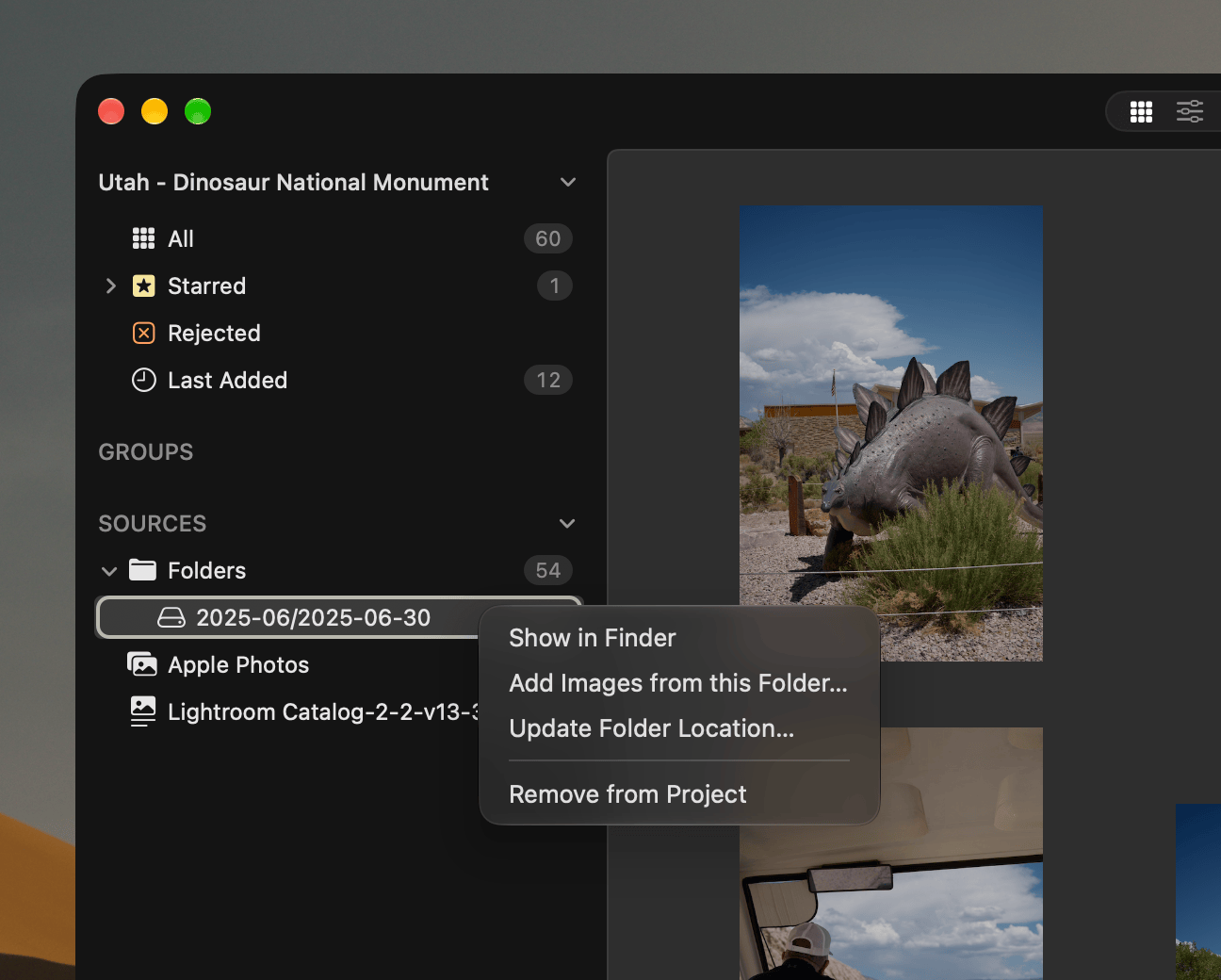
Folders
- Add Images from this Folder – choose more images from here.
- Show in Finder – opens the selected folder in Finder
- Update Folder Location – re-link the folder if you’ve moved the source files.
- Remove from Project – remove the contained images from the project
Apple Photos Albums
- Albums update live with changes in your Photos Library
- Add All from Album – adds every image in the album; great for syncing in new picks
- Remove from Project – remove the contained images from the project
Lightroom Classic Collections
- Collections are added at import, not synced with catalog changes.
- Add All from Collection – adds every image in the collection; great for syncing in new picks
- Remove from Project – remove the contained images from the project
“Import” is now “Add Images”
We clarified the words and behavior around “Import” to be “Add Images”, as it more clearly describes how Aphera works: we never move or copy images when adding to a project, and now that includes live data in Apple Photos.
- File > Add Images… (Cmd+I) opens your configured sources.
- File > Add Images from Last Source… (Cmd+Option+I) reopens the source you used last.
- File > Add Images from Finder… (Cmd+Shift+I) opens a standad file panel.
See Adding Images.
Other Notable Changes
- Transfer from Card… moves to Cmd+Shift+T.
- Re-Import Files is now Update Metadata from Files.
- Last Imported is now Last Added, and Files is now Folders under Sources.
- Move File to Trash is disabled for Apple Photos images.
- Drag images from the Photos app into a project. Aphera adds them as links to your Photos library, not as copies of the files.
- When setting up a Lightroom Classic source, if the catalog’s folders are missing you can fix that in in Settings, without modifying the catalog.