
Aphera 1.8 brings some big workflow improvements for those who care deeply about file structures.
Transfer from Card
One click to copy photos from an SD card into your preferred folder structure and import into a new or existing project. Choose File > Transfer from Card… (Cmd+Shift+I), or insert a card and Transfer opens automatically.
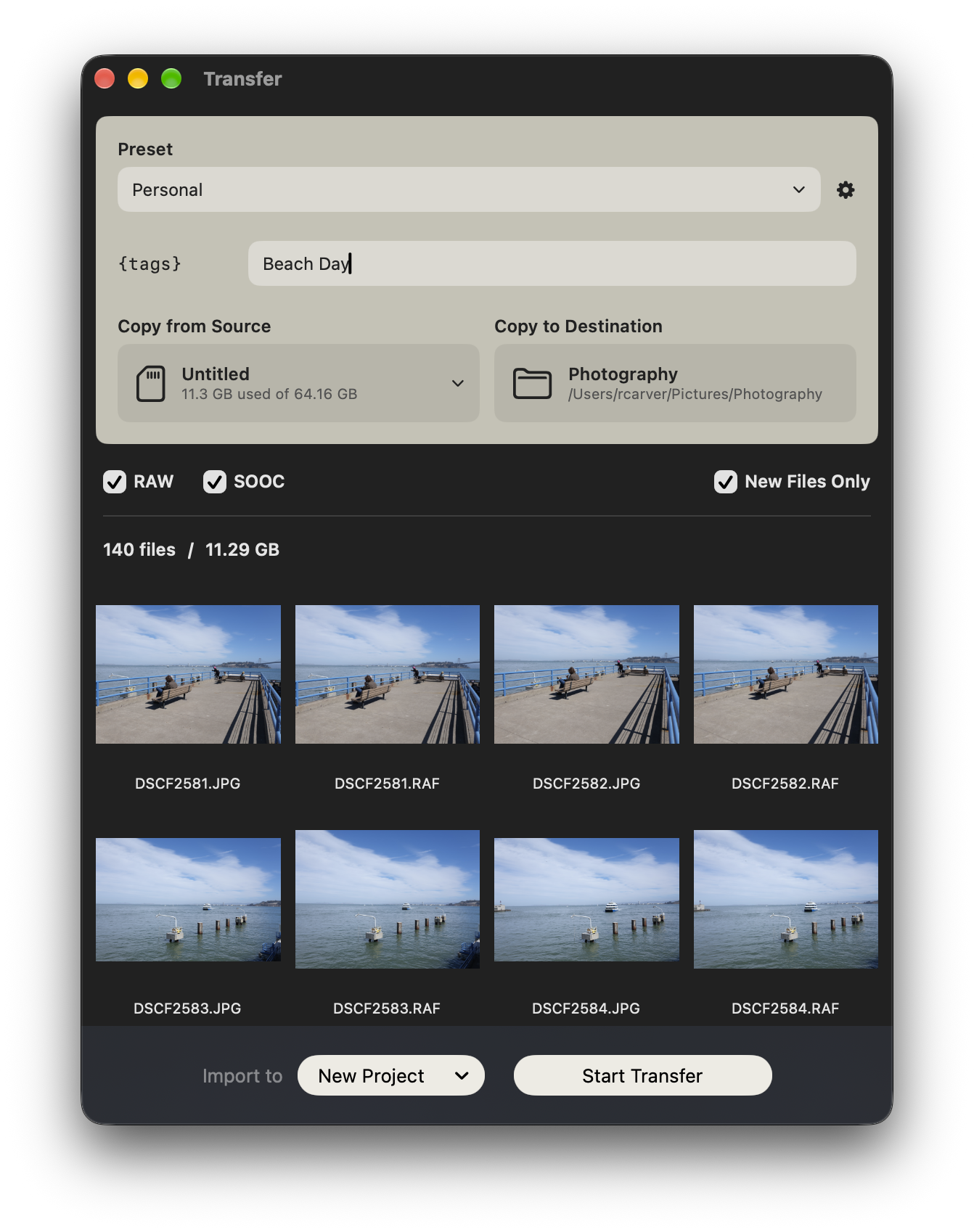
A Transfer Preset sets the destination folders and a naming pattern. The default, {exif:year}/{exif:date} {tags}/{original}, puts photos in a folder per year, then a folder per day named with the date and your tags. Any app that can browse folders can find them.
- Add more than one destination folder to keep a backup. Aphera copies every file to each folder.
- New Files Only skips files you transferred before.
- Verify Copies reads each copy back and compares it to the source.
- With Import to set to New Project, the tags become the project name.
- Copy from any folder instead of a card with Copy from > Choose Folder….
Transfer does not change or delete the files on the card.
See Transfer.
Browse by Folder
The new Files section of the sidebar shows the folders that hold your project’s photos. Right-click a folder for Show in Finder, Import from this Folder…, Update Folder Location…, and Remove from Project. Removing a folder from a project leaves its files on disk.
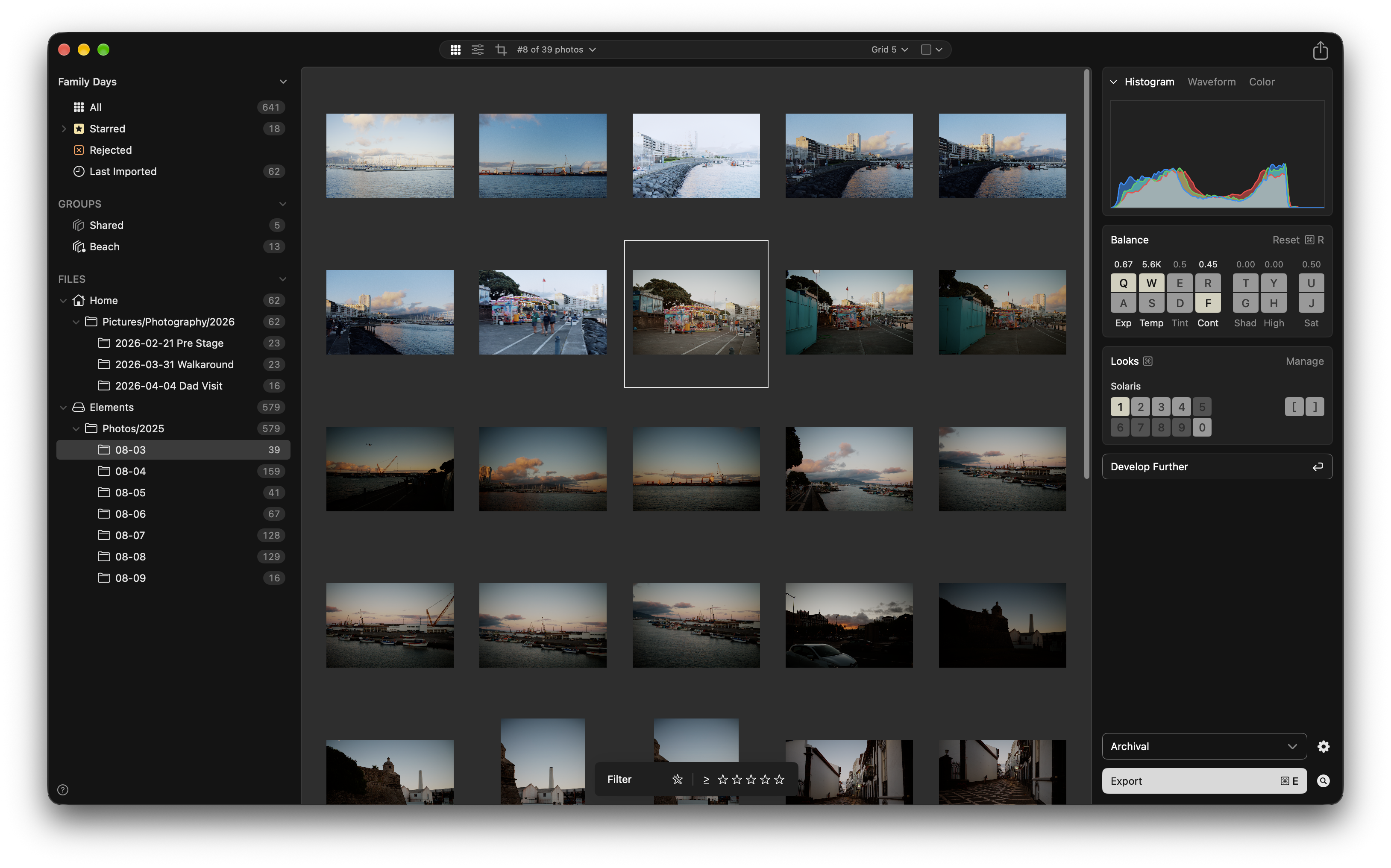
A red folder icon marks a folder with missing files. A red drive icon marks a drive that is not connected.
See Files.
Relink Moved Folders
After you move a folder of photos, right-click it in Files and choose Update Folder Location…. Aphera relinks the files in the new location and in the folders inside it. Update a drive row to relink every folder on that drive.
This replaces the Manage Imports window, making re-link easier to use.
More Improvements
- An empty project shows a Transfer from Card button while a card is inserted.
- Import toasts report files Aphera skipped and folders it could not read.
- Choose New Preset… in the export preset menu to create a preset and open it in Settings. The gear button opens the active preset in Settings.
- File > Re-Import All Files is removed. To re-import a whole project, select All in the sidebar, press Cmd+A, and choose Photo > Re-Import Files.