
My journey with photography began before digital. Family point-and-shoots, manual film cameras, and “toy” cameras like the Holga all played a part. My first digital camera, a Fujifilm FinePix 1300, was a 1.2-megapixel, JPG-only point-and-shoot. It wasn’t pretty, but it was a marvelous device, and it got me hooked.
I soon discovered keeping my image files organized and findable was important. Back then, my colleagues in design traded folder systems like recipes. I chose a simple method for my photos, and I believe that simplicity has made my images more independent, more portable, and better known to me. It also formed the thinking behind Transfer, a feature we’ll be launching in Aphera soon.
What do I do with my photos?!
When the team started talking to users during the beta, we learned a lot about how they think about their image files. Depending on their age and the app they started with, we found that people either have a very close relationship with how images are managed and exactly where they live, or they’ve let an application take the wheel, maybe giving it directions from the passenger seat.
Neither approach is wrong, but they can feel very different when it’s time to move systems or try a new app. If you’re the in-control type, any new system must work with the files you already have. Moving or re-organizing them is a non-starter. On the other hand, if you’ve let an app manage files for you it’s hard to know where to start, raising many questions about where your files are and how to get access to them.
The catalog problem
A lot of people we talked to use a catalog-based system of some kind. Adobe Lightroom, Capture One, and the like put files on disk, then add metadata in a proprietary catalog format. Even with files plainly visible on disk, the catalog shapes how you see your images: it owns everything that makes them easy to find such as ratings, flags, keywords, and collections.
Without the catalog’s structure, you’re left with thousands of files on disk to look through. This is why we think how you store your files on disk makes all the difference when it comes to accessing them over the long term.
My setup
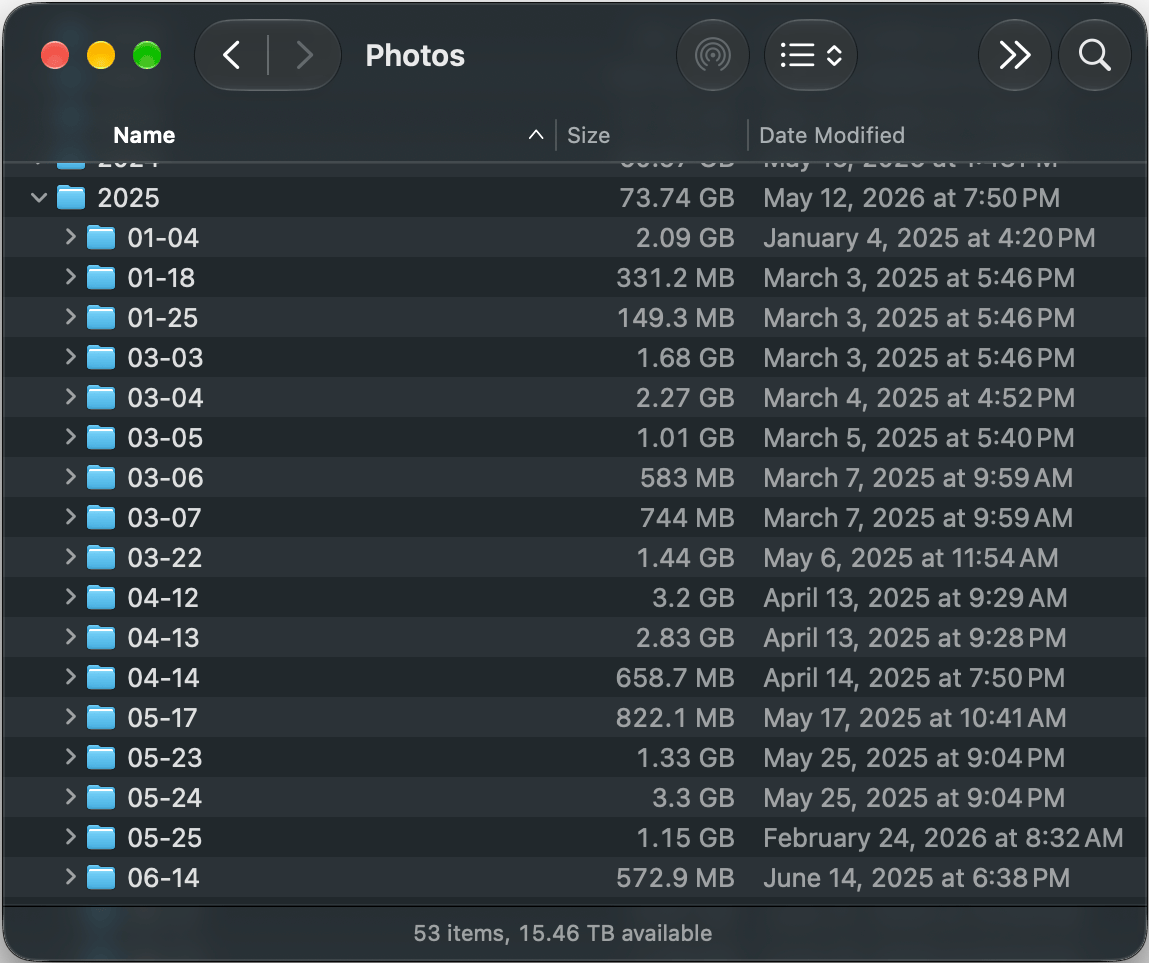
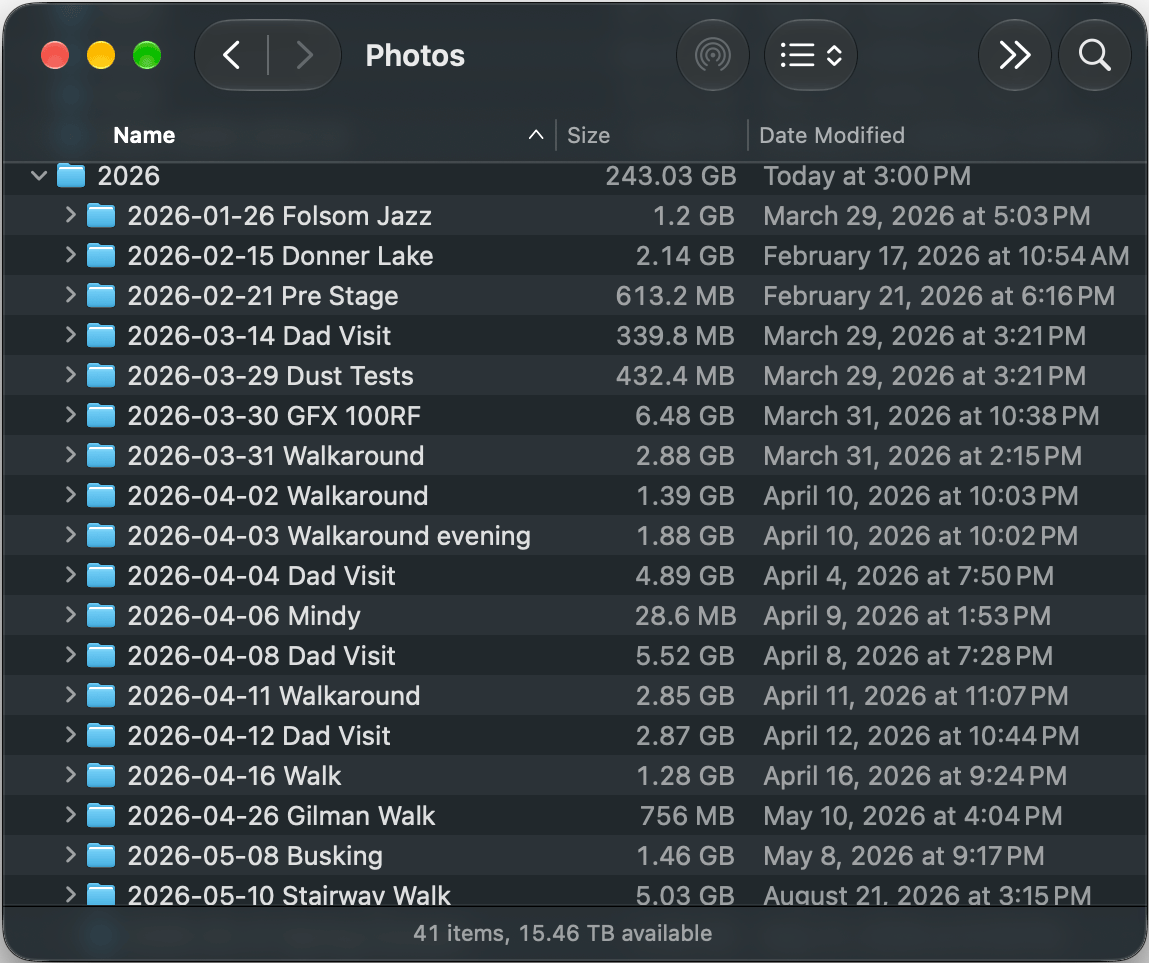
My own setup is simple, and has survived over many years and software transitions. All of my photos live on one drive, in one Photos folder, sorted by date.
Photos > YYYY > YYYY-MM > YYYY-MM-DD - TAGS
So a day at the coast ends up somewhere like:
Photos/2024/2024-06/2024-06-15 - Coastal Walk, Family, Santa Cruz, California
I don’t rely on much image keywording as the folder name suffices and is durable, and I’ve never needed a diagram to remember how it works. Because of that, my photos have never really belonged to any one app. I’ve moved them between tools, drives, and computers over the years, and they’ve always come with me intact. I actually lament this quite a bit with Apple Photos and images captured with my iPhone as those feel unknown to me, disconnected from my greater corpus of photos.
File over app
I didn’t have language for this until I read Steph Ango’s essay “File over app”. Ango, Obsidian’s CEO, argues that if you want what you make to last, it has to live in files you control, in formats you can open and read without depending on any particular piece of software. Apps come and go, but files can outlast them.
That’s roughly how I’ve always treated photography, mostly by accident. My images are files in folders, and whatever app I use to view or edit them could disappear tomorrow without taking my archive with it.
Why we’re building Transfer
So how do you get nicely organized files in the first place? For most people, plugging in an SD card is the critical moment. Most apps copy your photos into a structure of their choosing, designed to make their app easy to use, often at the cost of your structure later. The benefit is one-sided: it helps that particular app show you photos quickly. Unfortunately once that first copy is done, it can be hard to move files later when you find they’re not well organized.
We wanted Aphera to do better: the convenience of experience, while keeping you fully in control of your files — even if (especially if!) you choose to stop using Aphera in the future.
Aphera’s Transfer copies photos from your SD card into your filesystem, with extensive options to customize the file structure. For me, that means a card goes straight into Photos > YYYY > YYYY-MM > YYYY-MM-DD - TAGS, the same structure I’ve kept for years, without my having to touch a folder by hand.
Once copied to disk, the photos are added to a new or existing Aphera Project so you can start editing right away. If you’re still evaluating Aphera, simply point your existing tools to the files on disk.
It’s also something many of you have asked for. Getting photos off the card and into the right place is the first step of every shoot, and you told us you wanted Aphera to handle it. We’re delighted that more people are switching to an Aphera-first workflow, and we hope Transfer makes that even better.
Transfer should launch by the end of next week. Update the app then, or download a 30-day trial.
My FinePix 1300 is long gone, but every photo it took is still sitting in a dated folder on my drive. That’s what we want for your photos too. File over app, all the way down.
How do you organize your photos on disk? We’d love to know as we finish Transfer.