
Aphera 1.8 adds Transfer, a new workflow tool for getting photos off your card. It’s our take on making “copy from SD card” simple, repeatable, and safe. Naz shared the why last week: your photos should outlast any app. Today I’ll share the how, and the decisions behind it. It’s one of those tools that does a lot of work you hope to never notice. But if those steps don’t go perfectly, it can cause big problems later.
The manual way
It’s my favorite kind of day: spent outside, making photos. Hundreds of captures brimming with potential, all saved to a delicate piece of storage media: the ubiquitous SD card. After the gear is unpacked, and maybe a snack, I’m eager to get a peek at the images. But just to get there requires a whole bunch of file management.
You pull the card, attach a reader, and wait for the disk to mount. You dig through DCIM > 975_FUJI to find the images, open a second Finder window, and create a folder named for the shoot, say ~/Pictures/2026/2026-10-08 Beach Day. Then you select all, drag, wait, eject, and finally import into your editing app.
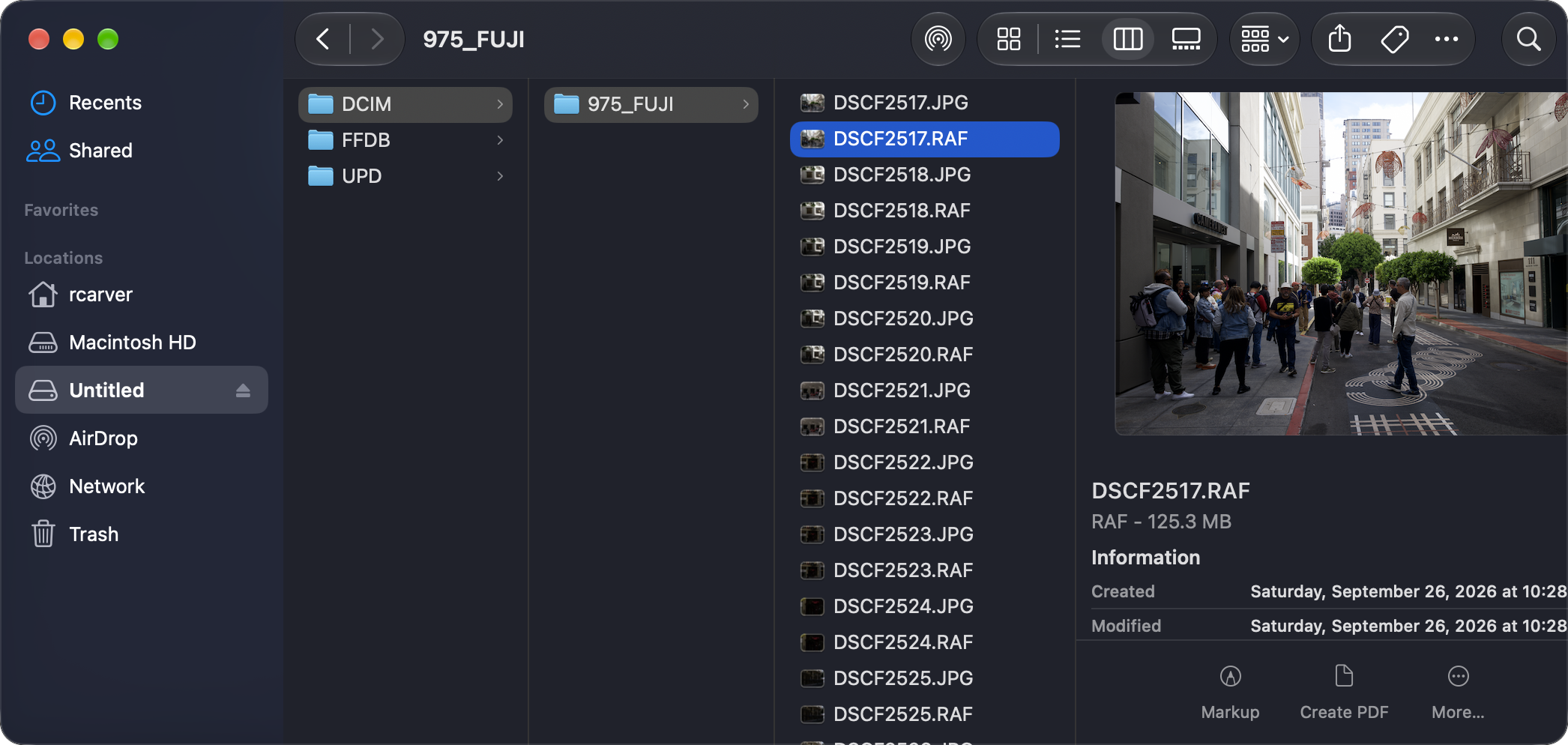
It’s a straightforward process, but one that’s full of ways to make mistakes. Did you select the right files? Did you copy to the right location? Did you name the folder correctly? If the shoot covered several days, does it need to be split by date? And once copied, do you know 100% that every image is on disk and matches the exact data from the card?
Clearly, we should have tools for this job.
Before Aphera
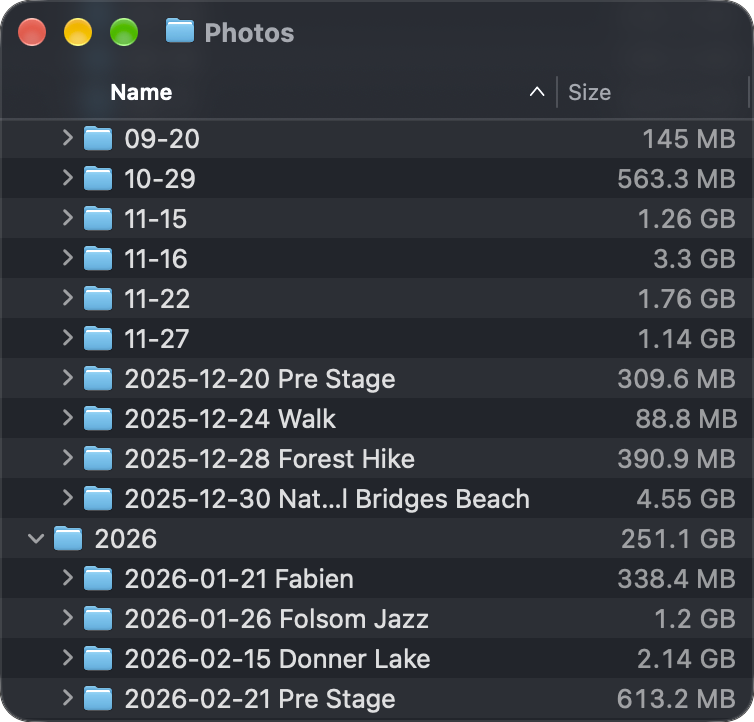
I used Lightroom Classic for many years, and its Import tool made copy from SD pretty painless. I organized “by date” and have a decade of files in folders named YYYY/YYYY-MM-DD. As we developed Aphera, I stopped maintaining my Lightroom catalog and wanted to simply have my files on disk. That’s when I realized a folder per date is challenging to live with outside of Lightroom. With dozens, if not hundreds of shoot days a year, there was no easy way to find a set of images from Finder.
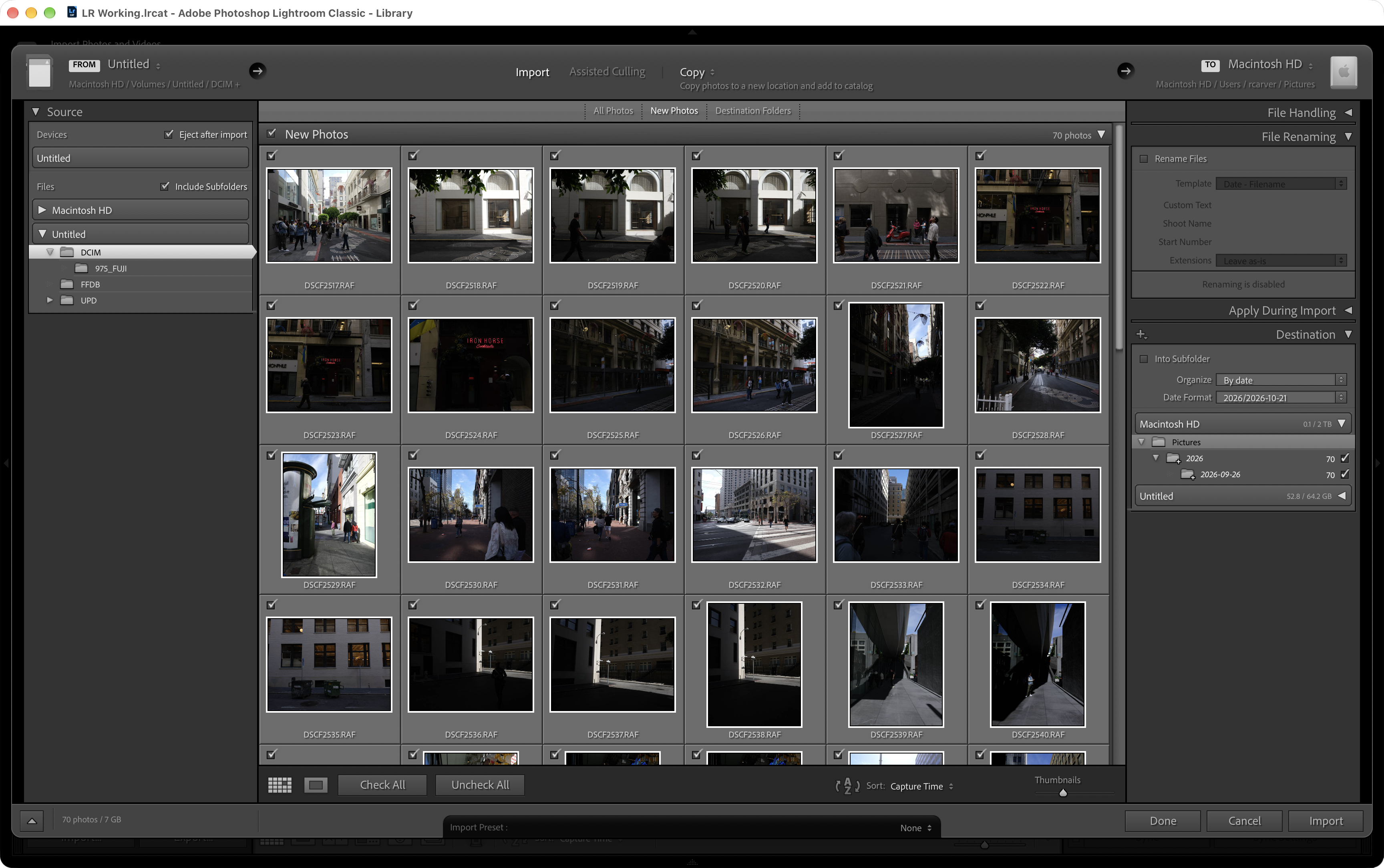
Plenty of apps do parts of the copy process, but the ones that supported the file structure I wanted seemed overly complex, and didn’t feel like they’d support the kind of experience we wanted alongside Aphera.
So I started copying files manually. It was the best way to really feel the pain points and get the result I wanted. Yes, I literally did those steps every time I came home with photos.
What we decided
After several months of copying files, it became tedious. But I had a clear understanding of what the ideal tool must do.
- Presets, not prompts. If the tool asks where to copy and how to name files every time, you’ll eventually do it differently and end up with files in inconsistent places. Make the big decisions once.
- Flexible file naming. It had to support our preference for dated and tagged folders, plus the wide range of preferences we know you’ll have.
- Verified copies. For every file copied, do its bytes match the source exactly? Flipped bits are rare, but cards get pulled mid-copy and readers get flaky. We wanted certainty.
- Duplicate and conflict detection. These go hand in hand. If a file already exists at the destination, is it verifiably the same data we’re about to copy? A match can be skipped, saving time and reducing writes to your disk. If the data doesn’t match, that’s an error: replacing the file would lose what’s already there, and skipping it would lose the new image. Neither outcome is acceptable.
- Multiple destinations. For extra safety, it’s wise to copy to more than one disk, say your internal drive and a backup drive. Reading from SD is typically slower than writing to disks, so doing both at once can be faster than one after the other. And with Verify Copies on by default, both are verified.
Last but not least, it had to make getting images into Aphera fast and easy. We imagined a single step to do everything above and open a new project ready for editing.
Files first
With the vision in place, I started building bottom-up from those requirements. I wanted Transfer to be fast and dependable before anything else. A CLI version of the tool made it easy to iterate and exercise numerous file conditions. A test suite that runs every operation across multiple filesystems (APFS, HFS+, exFAT, FAT32) gave me confidence that the tool accounts for subtle differences like case sensitivity, date precision, and maximum file size.
The same bottom-up thinking shaped a design decision that might sound pedantic: “import to Aphera” versus “copy to disk, then import to Aphera.” I imagined Transfer first as a standalone tool that does one thing well: copy from SD. But from an end-user perspective that’s only half the problem. When I come home from a shoot, I don’t just want files on disk, I want to see photos!
And there’s the tension. Fast access to the photos pulls toward the app. But over time, we want a system that’s file over app, transcending any one tool. Transfer had to serve both.
Set up once
The UX is built on presets. You set up preferences once, then reuse them. Shoot personal and pro work separately? Create a preset for each.
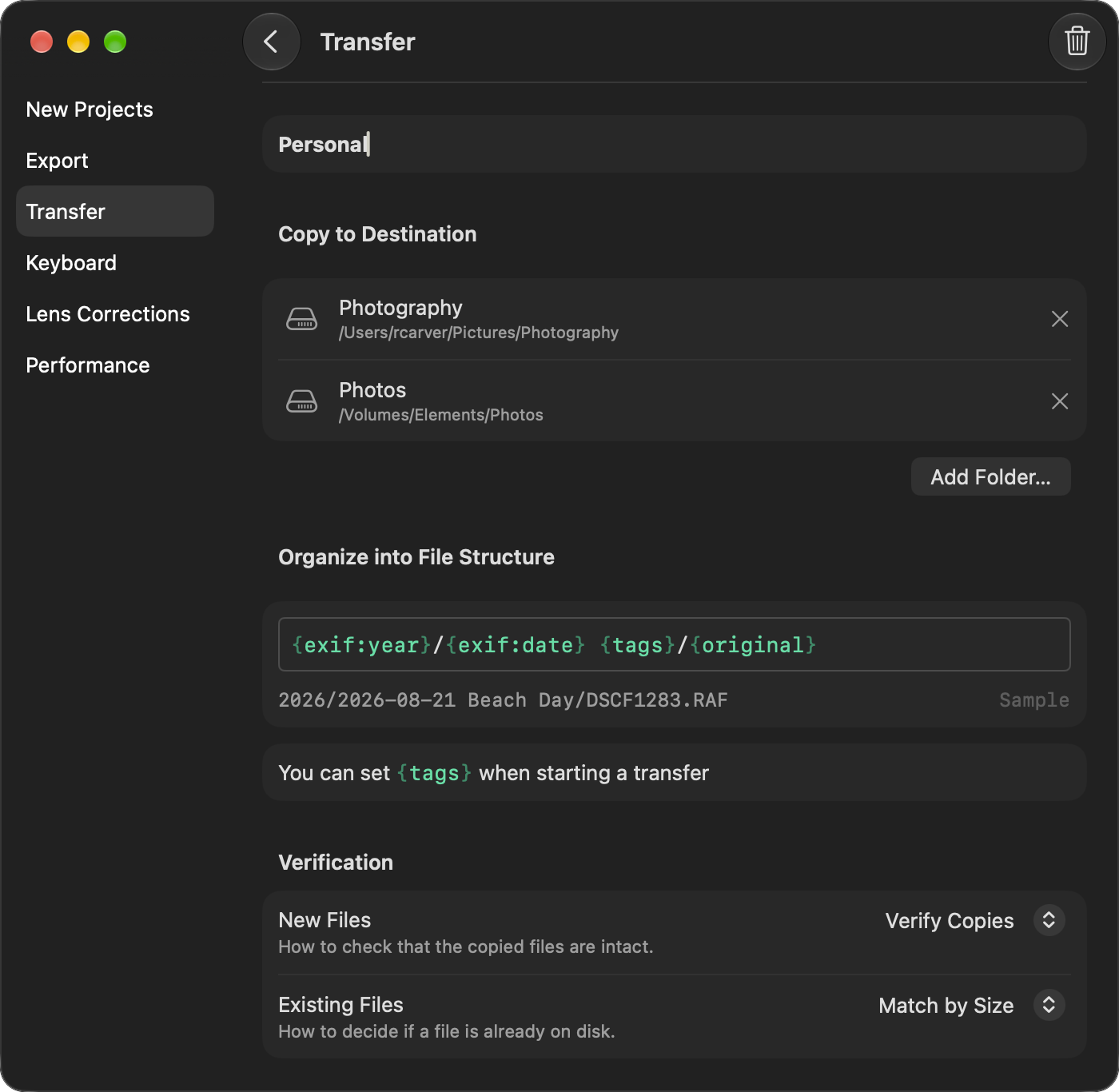
- Destination: one or more folders. Transfer reads each file from the card and writes it to every folder.
- File Structure: how to organize the images into folders, built from naming tokens.
- New Files: choose speed vs. certainty in how copies are verified.
- Existing Files: choose speed vs. certainty in how duplicates are detected.
Naming Tokens let you store files exactly as you like. The default pattern is the one I use:
{exif:year}/{exif:date} {tags}/{original}
It puts files at paths like 2026/2026-10-08 Beach Day/DSCF1283.RAF. Naz shared his own folder layout, which Transfer can build too. There are tokens for the card’s file names, capture date and time, camera make and model, and more. See the Transfer docs for the complete list.
The {tags} token solves the problem I had after Lightroom: years of dated folders and no way to tell them apart. Other tools call it “shoot” or “job”, but those words didn’t feel right — neither fits a day at the beach or a week of travel. Tags are open-ended: what happened, who was there, where. You type them when you start the transfer, they go in the folder name, and are used to name new projects by default.
When a preset uses {tags}, they’re required. It’s intentional friction: a few words are what make the folder findable years from now. And if you’re shooting a trip, press Tab to reuse yesterday’s tags.
First copy to disk, then add to project
When the transfer begins, each file is copied and verified at its destination, independent of the Aphera project. With each verified file, Transfer tells the project to import it. You can even skip the import, so Transfer remains a neutral copy tool.
For those times when you don’t reformat before shooting again, New Files Only is on by default for every transfer. Transfer keeps a record of every file copied, so it knows instantly what’s new since last time, without scanning your disk to guess at duplicates, and without re-copying files you’ve deleted. Need to re-copy everything? Turn off New Files Only for a fresh pass.
Back to the beach
I put the card in, Transfer opens, I type Beach Day and press Return. The photos start appearing in a new project while a backup copy is written in the background. When it’s done, every file is on both disks, checked against the card, and in folders I’ll understand in ten years, whatever tools I’m using then.
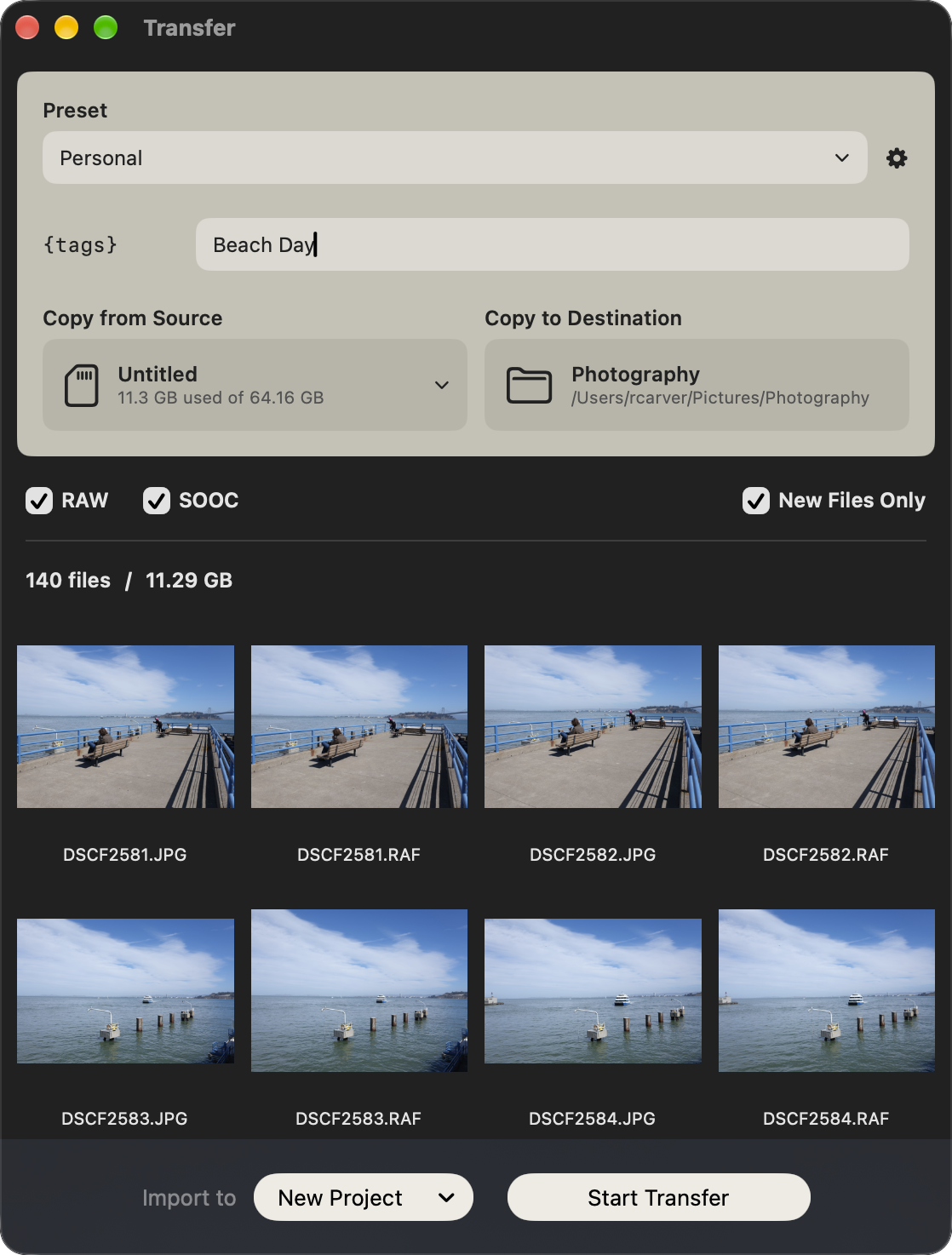
Transfer is in Aphera 1.8. Choose File > Transfer from Card… (Cmd+Shift+I) or insert a card while Aphera is running. We hope this makes it even easier to transition your workflows to Aphera, it definitely has for us.
BTW, if your needs go beyond what Transfer offers, Photo Mechanic and OffShoot are proven, powerful tools for ingest. Aphera can read image files from anywhere on disk, so we’d rather you use the right tool for the job.
How will you setup a Transfer preset? We’d love to hear.