
A new beta version has been released. This one refines where your projects live, how they’re named, and how exports are configured.
New Project Setup
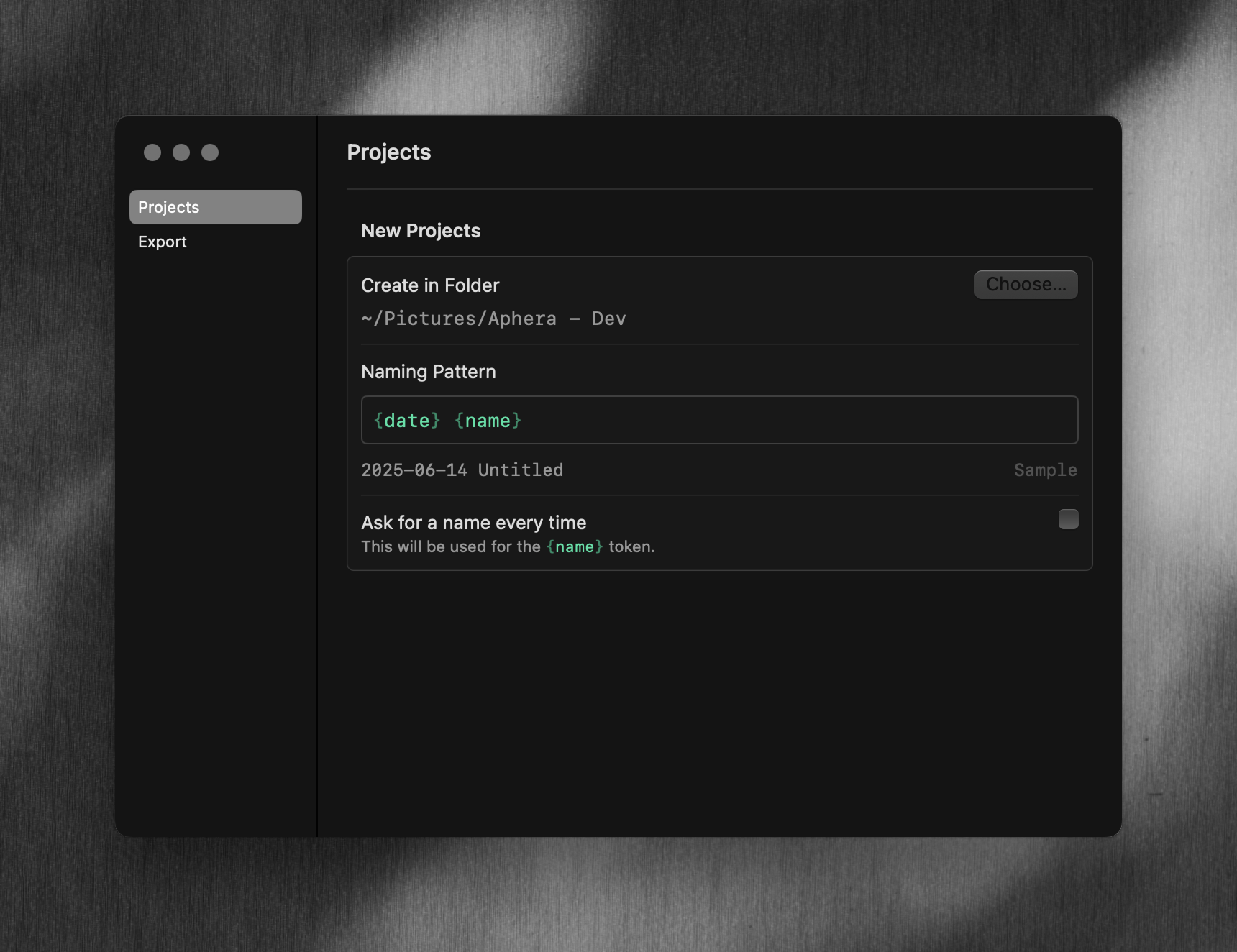
Open Settings (Cmd+,) to choose where projects are stored and how they’re named. New projects are saved to disk the moment you create them, and auto-save as you work — no manual Save needed.
Workflows, Simplified
We have a big vision for Workflows in Aphera, but we’ve heard from many of you that the current feature is confusing. We’ve trimmed it back to a simple Exports feature.
In Settings, you can create any number of Export Presets — where to save files, how to name them, how to version, plus all the image format settings you already had. Three are built in to get you going: Archival, Web, and Social.
A preset can be setup to write to each project’s Exports folder (good for project-specific output) or to a fixed global location (good for sending all your client deliveries or social posts to the same Dropbox).
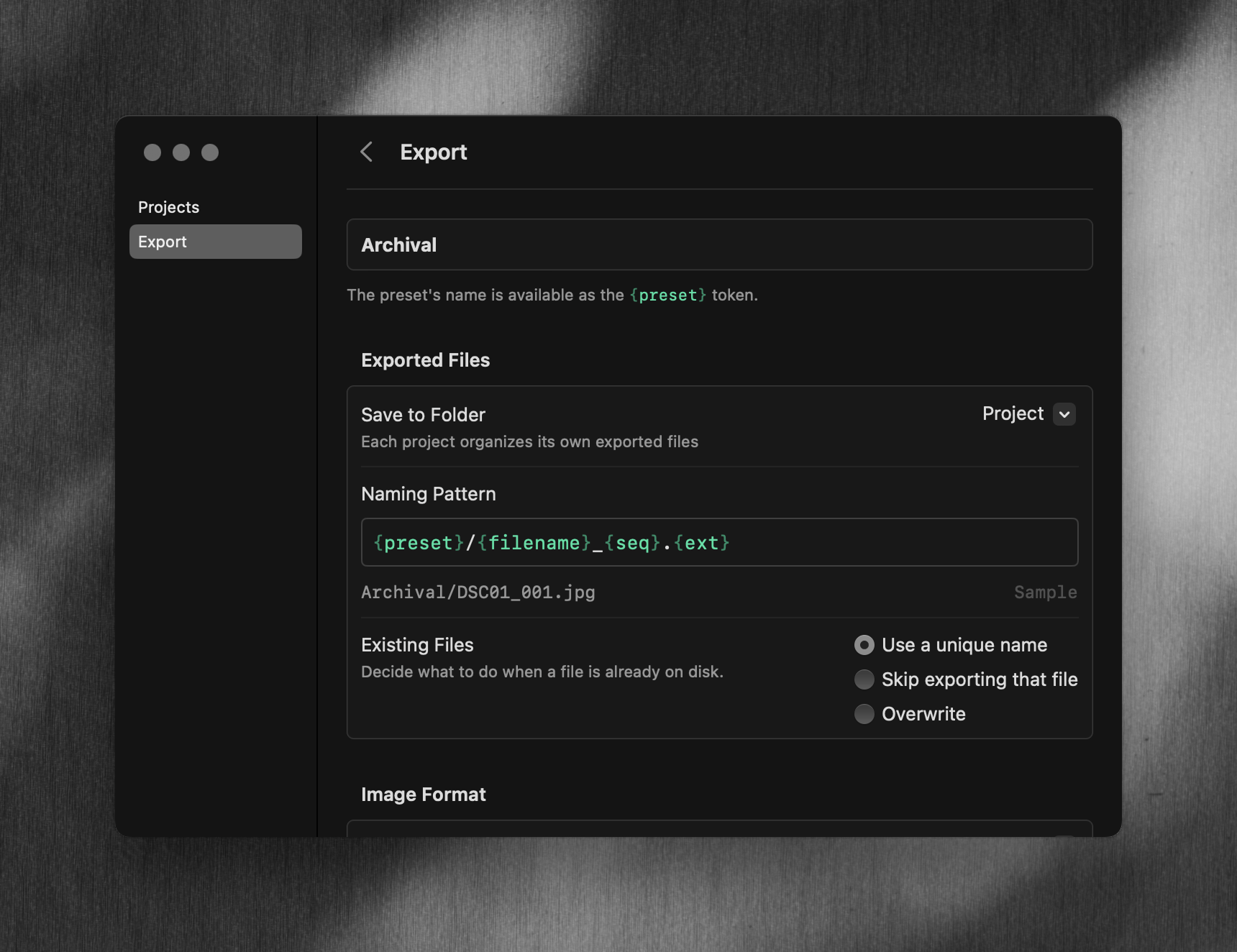
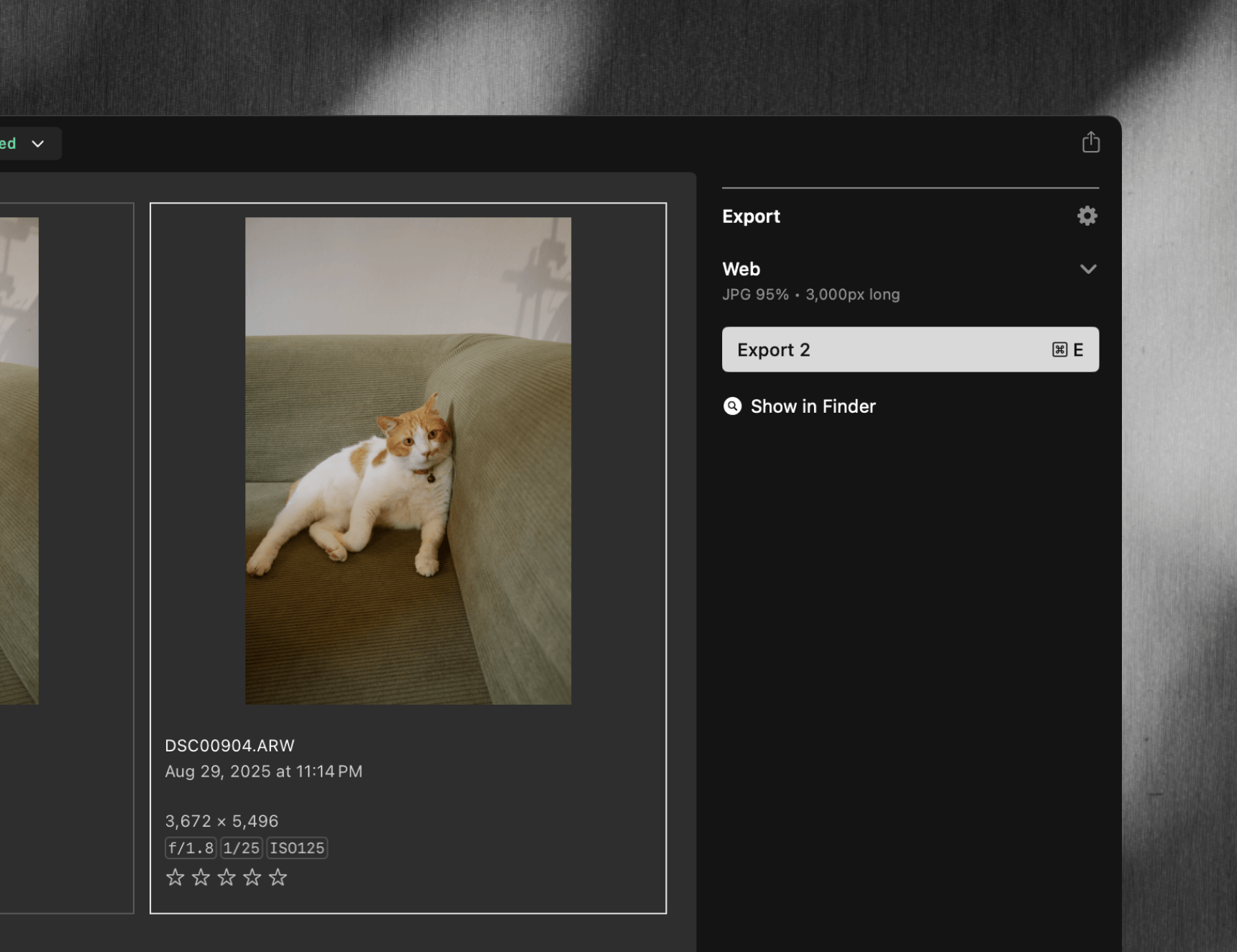
Each project remembers the last used preset. Select your images, hit Cmd+E, and the exports go out.
Naming Patterns
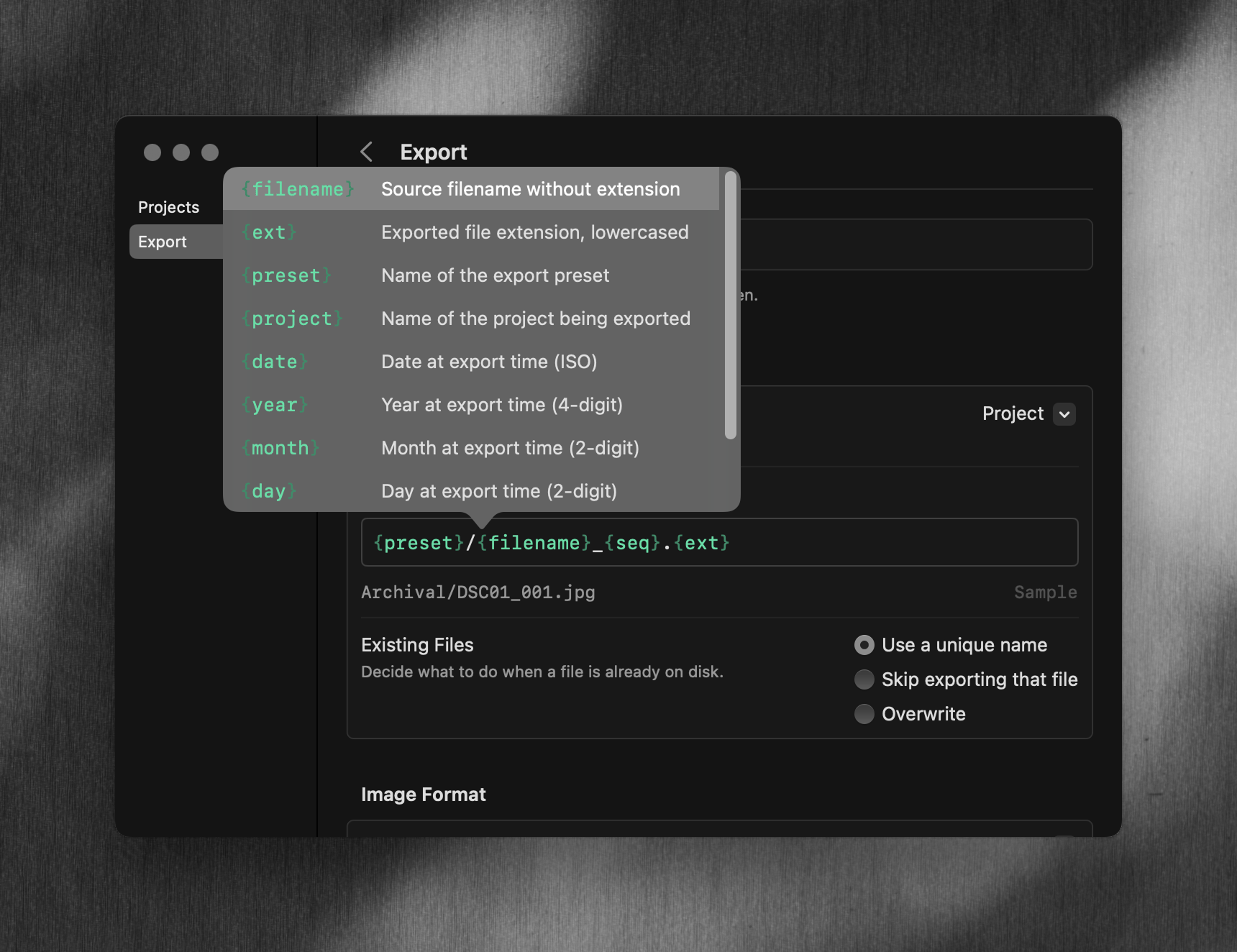
Both Project and Export Settings now have a Naming Pattern field where you shape filenames and folders using tokens like {date}, {filename}, or {preset}. It’s a powerful way to set up your on-disk files just the way you want. A few favorites for power users:
Per-Project
{preset}/{filename}-{version}.{ext}– Keep each version exported for comparing the changes.{preset}/{seq}-{filename}.{ext}– The order on disk matches your selection.{preset}/v{version}/{filename}.{ext}– Each exported batch goes in a separate folder.
Global Exports (Desktop, Dropbox, etc)
{filename}.{ext}– Drop everything into one folder{project}/{filename}.{ext}– Drop everything into a folder by project{year}/{project}/{filename}.{ext}– Keep the final export by year and project (with Overwrite mode){year}/{project}/{filename}-{version}.{ext}– Keep all of your exports by year and project
The full set is in the docs. Let us know which other tokens you’d like to use.
Improvements to Import
Use the folder’s name to create a Group. If you import a single folder of images, we’ll create a Group with that name.
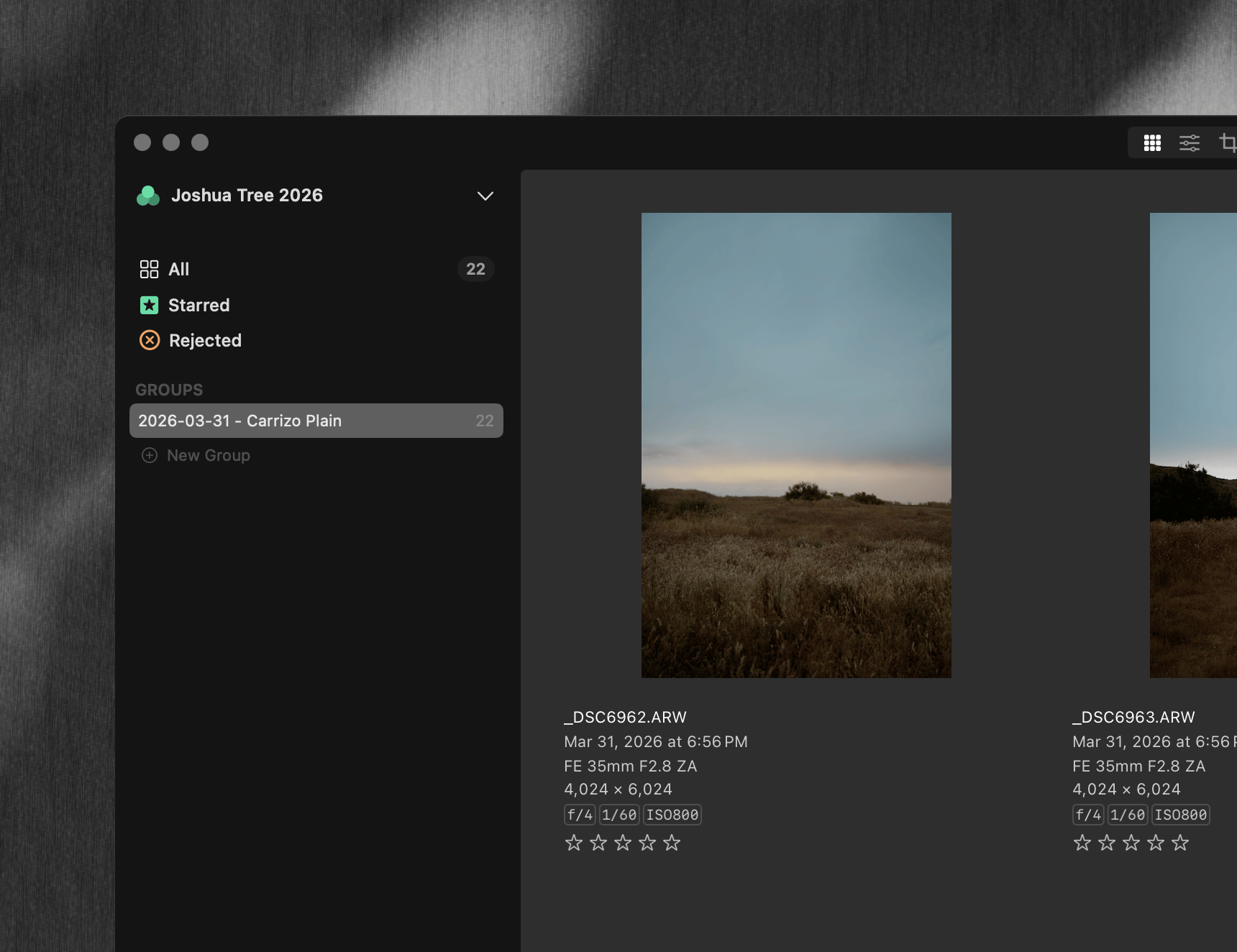
If you shoot RAW+JPG, the import process now only brings in the RAW file to Aphera. We think that’s the right thing most of the time, so please let us know if you have a different workflow in mind.
Disallow importing from an SD card. Since Aphera always references files on disk, this probably isn’t what you want. A full import/ingest tool is in the works.