

In the beginning, there were stars.
…and there were also picks, flags, colors, rejects, tags, and more.
Across photo management software, people use all of these culling tools to identify and organize their best photos. With so many options, we see a wide variety of patterns in use. We knew Aphera needed powerful culling tools, but which systems should we add?
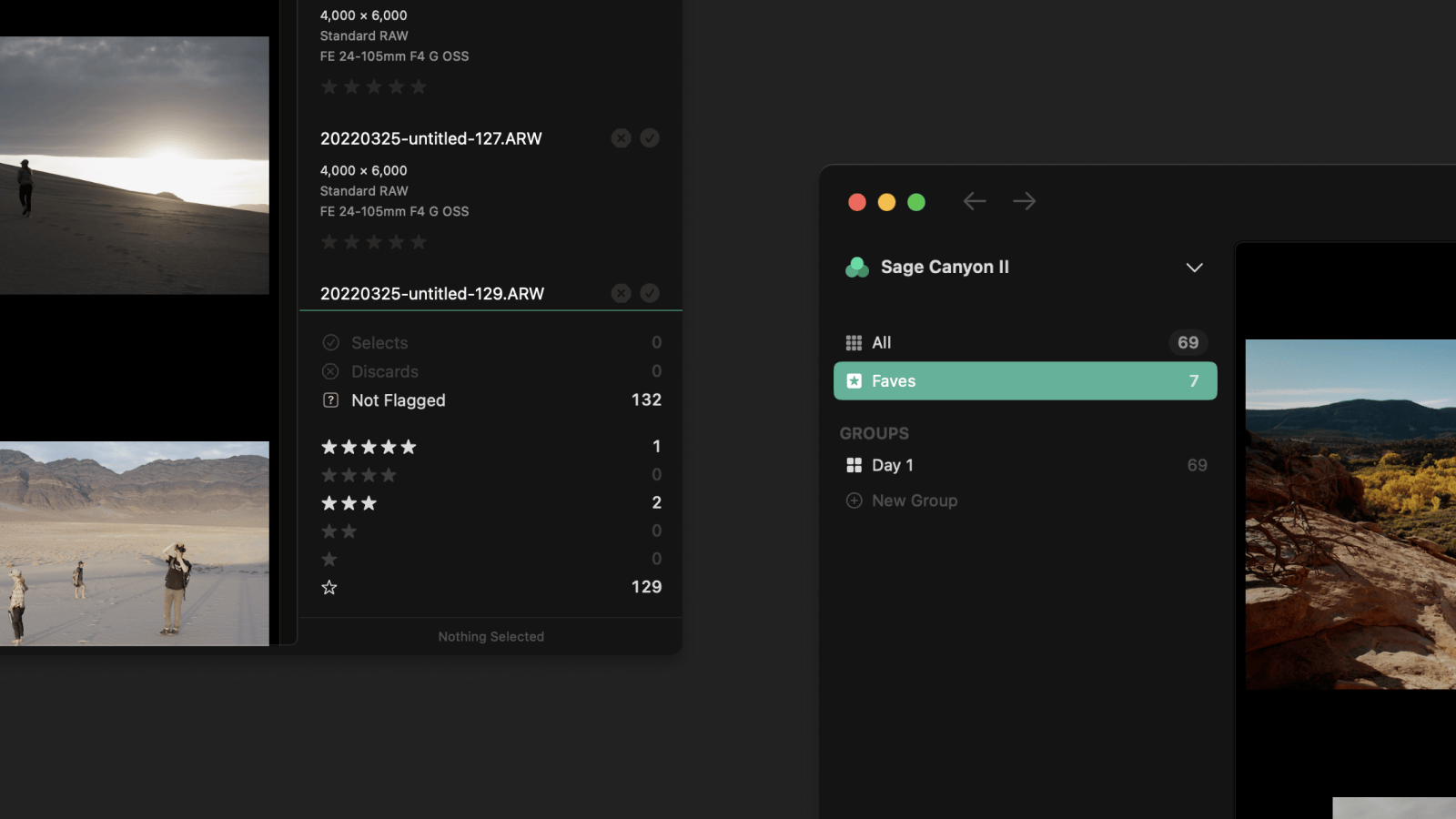
In early development we added many of the common culling tools, but for the private beta we simplified Aphera to the simplest option: Faves. The hypothesis for this was “how much culling do people need?” Is a single signal enough for a photographer to organize their shoot? The Apple Photos app works this way: a single way to Favorite your photos. When Ryan and Naz were at VSCO, they found that due to this limitation, users culled from Camera Roll → Favorites → VSCO Studio. Exporting to share was the final approval.
Follow the user
With Aphera on macOS, we’re dropping a new tool right into the middle of a huge variety of existing workflows. We heard quickly from beta testers that they missed stars. Coming from Lightroom primarily, but also other apps like Capture One, Photo Mechanic, and even Aperture, we realized that we needed more nuanced culling tools. But to what degree?
Some of the answers were found in our beta group: we heard over and over about using stars. In different ways, though mostly as a tool for doing multiple rounds of refinement.
My process of culling is that I do one pass and assign 1 star, then do another pass and do 2 stars, and so on. I missed that here a bit because unfaving a photo felt destructive.
Marcin Wichary
Stars to cull (2 or 3 stars). Stars to cull again (4 stars). Develop the 4 stars to find the feel. Stars to cull (5 stars).
Troy Sandal
1 star: potential, 2 stars: I know it's going to be a banger. Reject would be REALLY nice, a main part of my workflow is to delete the cruft.
Al Power
Sometimes stars are given special meaning:
Different stars for different purposes. 3 stars for website, 4 stars for emails, 5 stars make it to social.
Tyler Nutter
Follow the data
Another set of answers came from researching other apps and data formats. As expected, we didn’t find much consensus.
| XMP Spec | Lightroom | Capture One | Photo Mechanic | Bridge | |
|---|---|---|---|---|---|
| Stars | xmp:Rating 1-5 |
✓ | ✓ | ✓ | ✓ |
| Pick | xmpDM:pick |
Flag (xmpDM:pick since 2024) |
Session Selects (file move) | Tag (proprietary XMP) | None |
| Color Labels | xmp:Label (text) |
5 colors | 8 colors | 9 classes | 5 colors |
| Reject | xmp:Rating = -1 |
Flag (xmpDM:pick since 2024) |
Session Trash (file move) | Trash (Color Label) | ✓ |
We can see that Stars are universally supported, with xmp:Rating representing them well. The other options are filled with problems:
- With multiple axes come contradictions: in Lightroom, you can have a photo that’s 5-star AND rejected.
- Color labels are notoriously fragile across apps — they’re stored as text strings, and if the text doesn’t match between apps, the color doesn’t display.
- Flags are worse: Lightroom only started writing them to XMP in 2024, and Bridge uses an entirely different mechanism for rejects.
- Photo Mechanic’s Tag — the standard for speedy culling — writes a proprietary value, so users who care about interop end up relying on stars for a durable rating.
- Capture One doesn’t have flags at all — users migrating from Lightroom end up repurposing color tags as a workaround, mixing two systems that weren’t designed to work together.
So what is this xmp:Rating? We can learn its intent from the XMP Specification:
A user-assigned rating for this file. The value shall be -1 or in the range [0…5], where -1 indicates “rejected” and 0 indicates “unrated”. If xmp:Rating is not present, a value of 0 should be assumed. NOTE: Anticipated usage is for a typical “star rating” UI, with the addition of a notion of rejection.
A single value that can represent both star ratings and rejections? That’s exactly what we want.
Design
The answer was clear: Stars backed by xmp:Rating perfectly lined up with both user requests and data standards. The question became how do we design a simpler experience around XMP Rating? How could we add stars without losing the simplicity of the Fave?
The first insight came by looking at XMP Rating as categories:
- No Signal (0)
- Signal + Strength (1-5)
- Rejected (-1)
With this view, we can turn seven signals (-1 0 1 2 3 4 5) into three: Rejected, No Stars, and Starred.
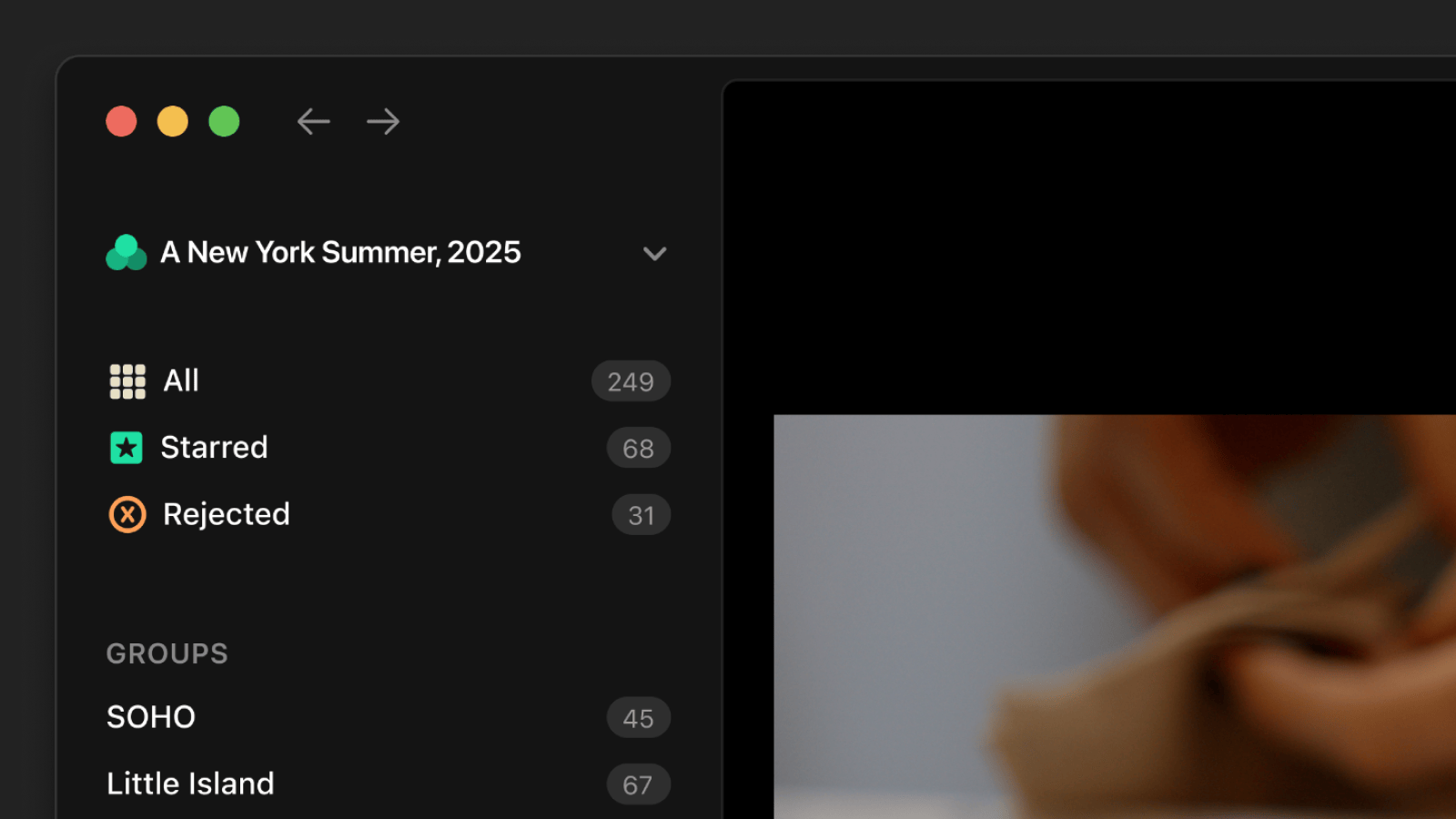
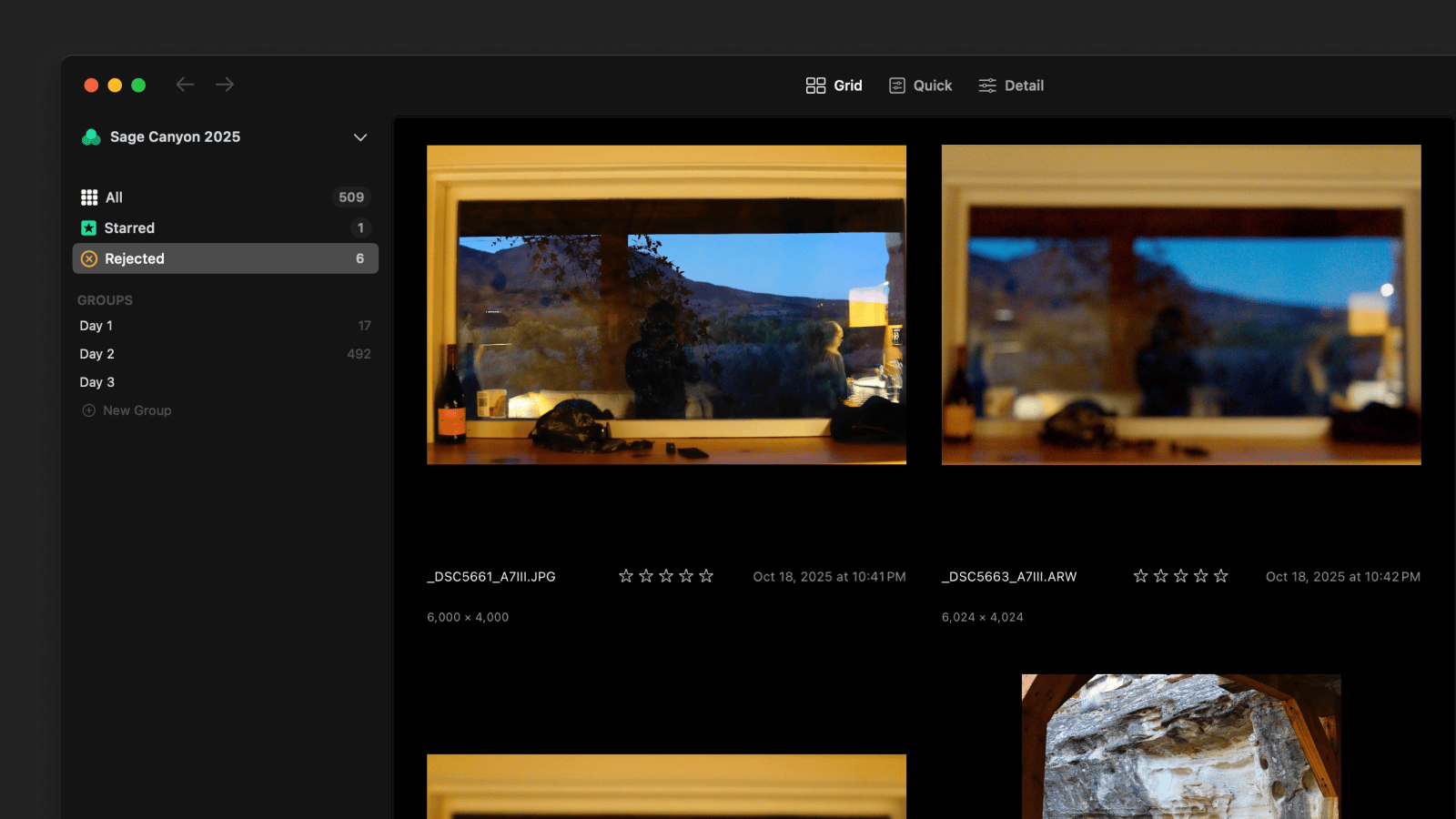
In previous versions of Aphera, Faves was binary — on or off. Starred replaces it with a view of anything with a star set. To respect the hierarchy, we group photos by their rating, and changing a rating within this view elegantly moves the photo between groups.
By showing all ratings in a single view, users can use stars however they like: thinking like Favorites? Use 1-star. Doing a multi-pass refinement? Use whatever number feels right as you progress. The Starred view shows everything you’ve given a signal.
The Rejected view shows the inverse: photos you don’t want to see again. When a photo is rejected, it’s hidden from all other views. It’s like a soft delete, so we don’t need an additional “trash” or other features.
Keyboard
Keyboard control is critical for a fast workflow, so why fight the obvious? We assigned keys 1-5 to set a star.
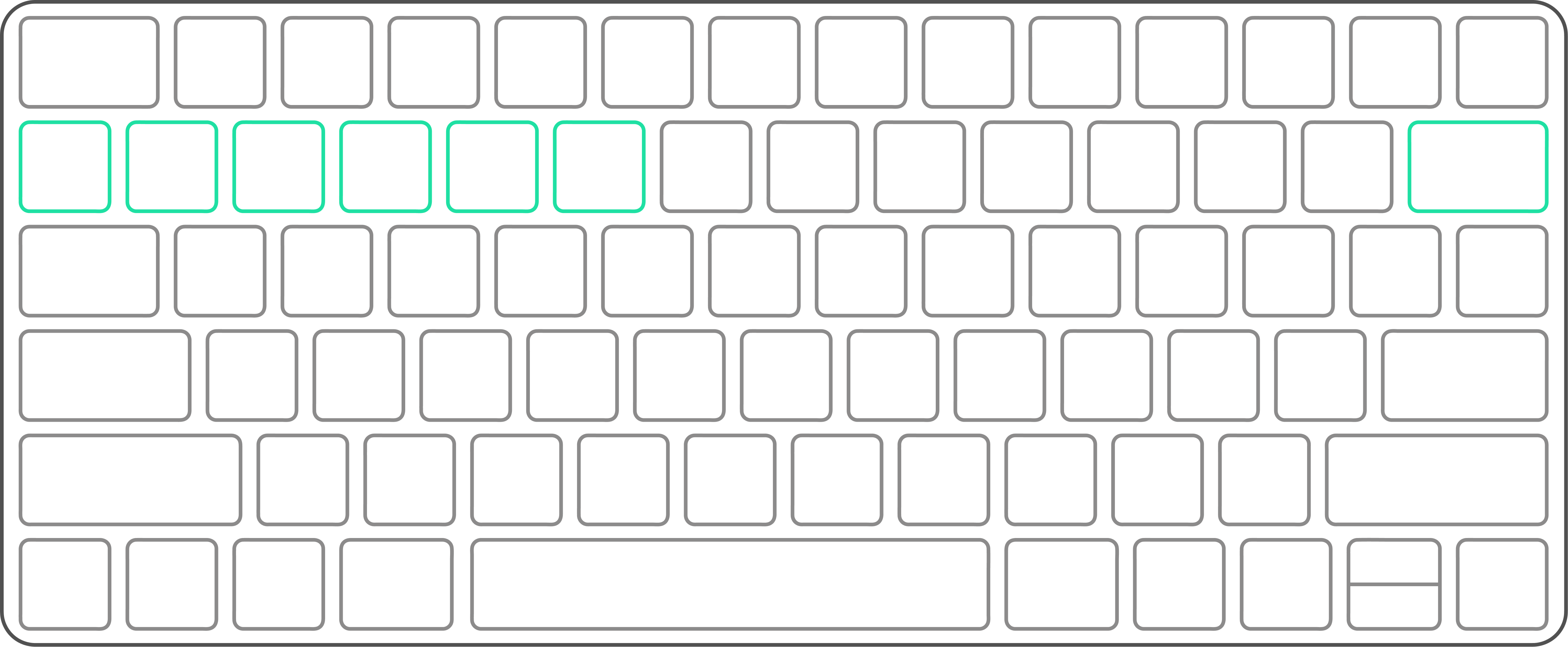
- To remove stars (No Signal), we opted for the
~key, which neatly sits to the left of1, an easy reach when keeping your right hand on the arrow keys. - To Reject, we decided on the
deletekey. It just feels good to hit delete.
Filters, Groups, and Workflows
Stars join two other tools for organization in Aphera: Groups and Workflows. Both of these tools now have a filter allowing you to focus in on any set of stars.
- Groups are a lightweight way to collect photos for any reason. Separate your photos by location? Looking for portraits? Groups can do that.
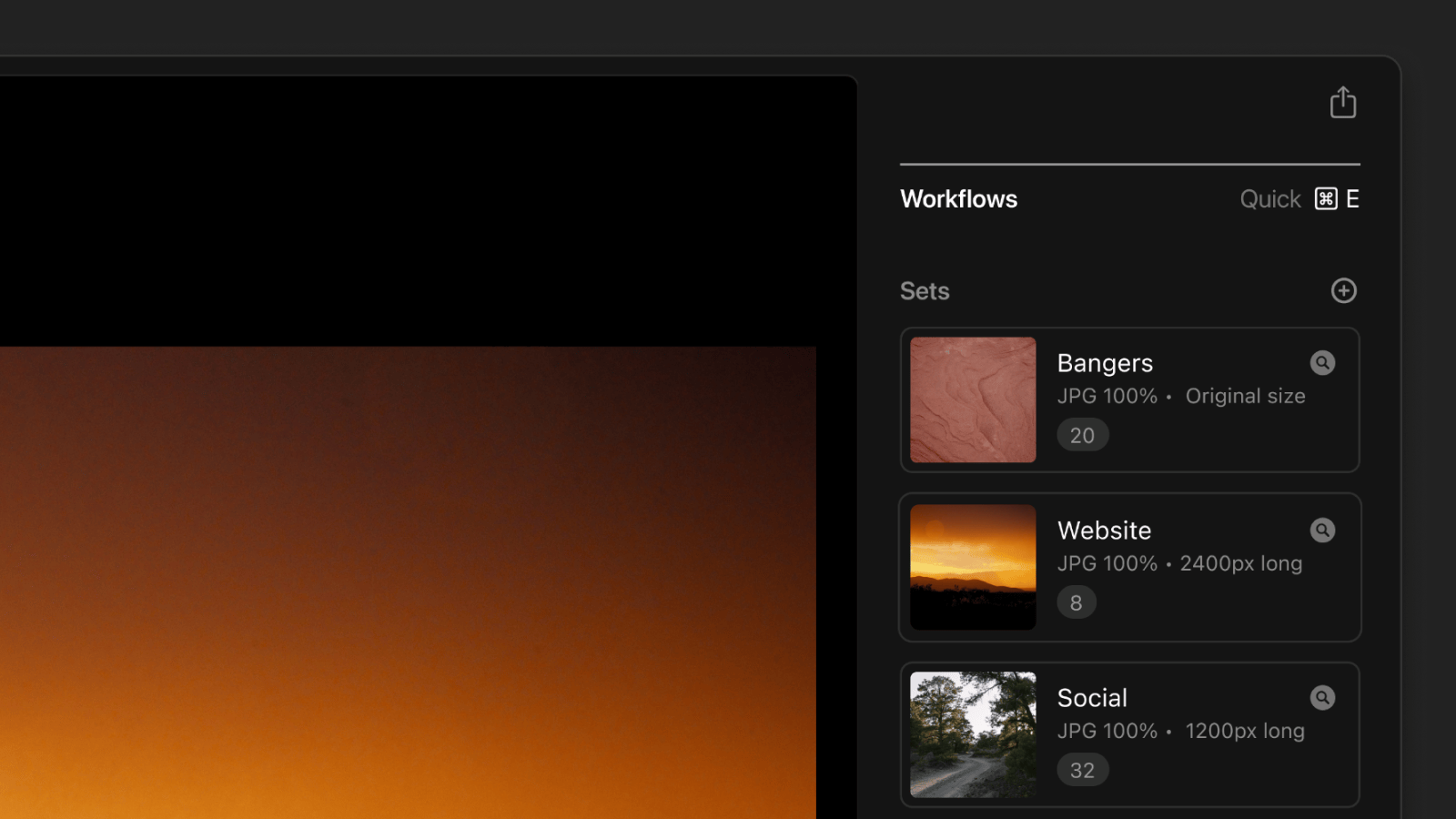
- Workflows act as buckets for processing and export. Sharing to social? Saving full size JPGs? Workflows collect those photos along with the settings to get it done.
In terms of culling, we think Workflows tie it all together. Where we see users giving meaning to a specific star rating (“5-star goes to the client”) or color tag (“red is ready to print”) we offer Workflows. Workflows free you from using star ratings consistently across your entire catalog. Instead, you can use them however feels appropriate for the current culling task. For example in a Lightroom Catalog, if 5-star means client pick, you’re stuck with that meaning forever. In Aphera, stars are local to each project, and Workflows handle what happens next.
Compatibility
We want Aphera to sit comfortably within whatever tools and workflows you currently use. By building our culling system on top of XMP Rating, we get a solid foundation for interoperability. Aphera will use an existing rating on import (with xmp sidecar support in the works), and on export we can simply write the value. When importing from tools with other signals (Apple Photos’ Favorite, color tags, even keywords) we can map them to a specific star rating, group, or workflow. Those features will continue to evolve.
Stars all the way
The new Starred feature extends Faves with a meaningfully more nuanced system for culling. We’ve designed it to work across a variety of tools and workflows, while keeping the experience simple.