

The main window is a three-panel layout: Sidebar, Content Area, and Inspector.
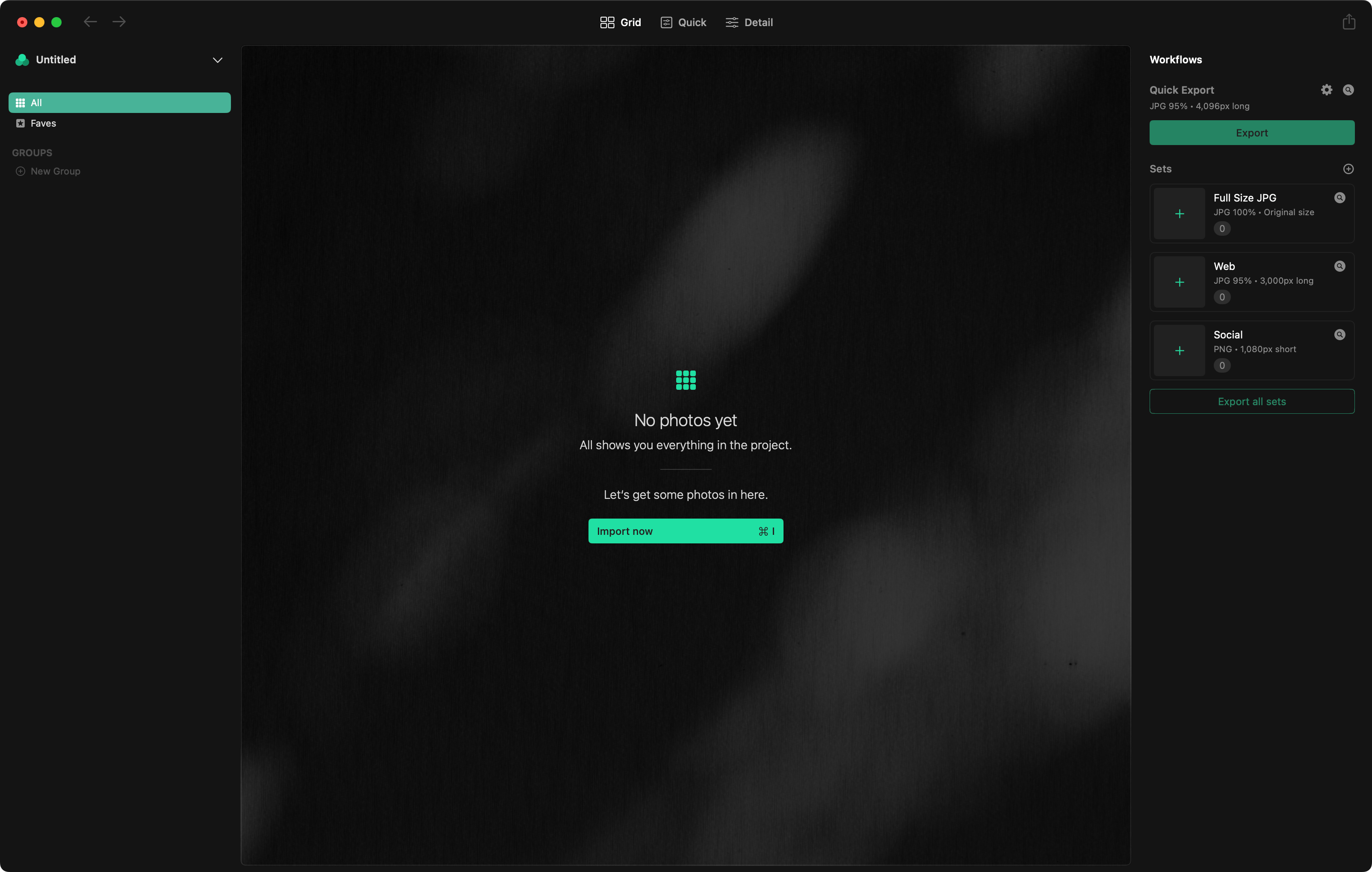
Sidebar (Organizer)
The left panel displays navigation and organization controls. See Browsing & Collection for details on sidebar sections.
Toggle visibility with Ctrl+O, or via View > Show/Hide Organizer.
Content Area
The center panel displays your photos. What appears here depends on the current mode: a grid of thumbnails in Collection mode, or a single photo with editing controls in Quick Edit, Detail Edit, or Crop mode.
Inspector
The right panel displays metadata and export history for the selected photo. See Inspector.
Toggle visibility with Ctrl+I, or via View > Show/Hide Inspector.
Focus Mode
Focus Mode (Ctrl+F) hides the sidebar, inspector, and toolbar chrome, leaving only the content area. Available in edit modes and collection mode. Use Ctrl+F again to exit.
Full Screen
Standard macOS full screen behavior via the green window button or the View > Full Screen menu item.
Help
The toolbar includes a Help (?) button that opens the online documentation.
Background Color
The canvas background color behind your photos can be cycled:
| Shortcut | Action |
|---|---|
| , | Darker background |
| . | Lighter background |
This works in both Collection and edit modes, with separate color settings for each.